

Starting a chat
A new chat opens on an empty state:Hello, <name> and What would you like to explore? The message box’s placeholder cycles through 25 example goals, a new one every 3.2 seconds, each starting Ask Receipt to … — for instance Ask Receipt to review IAM roles for overly broad permissions or Ask Receipt to check for expired SSL certificates across domains. They are examples of the kind of request Receipt is built for, not commands; type your own goal in your own words. Once you’re inside a thread, the placeholder becomes Ask anything.
When you send, Receipt first decides what kind of turn this is. A question it can answer from the conversation gets a streamed reply in the thread. A request that needs current data from your connected systems, a file, code, or anything outside the chat becomes a background run. A request to write a new organization skill gets a draft you can review. While that decision is being made, the thread shows a status line above the reply — Sending your message to Beetle... first, then whatever the run reports (Beetle is the interface’s name for the assistant). The three routes are described in What the AI Co-Worker does, and the pipeline behind them in How it works.
Sending a message
The submit button changes label as your message moves through its lifecycle: Send message while idle, Sending… once you’ve submitted, Stop generation while the response streams, and Error if something goes wrong. While a response is streaming, the same button doubles as a stop control. Sending is blocked while a file attachment is still uploading and while the thread has reached its context limit (see Reading the context meter below).The + menu
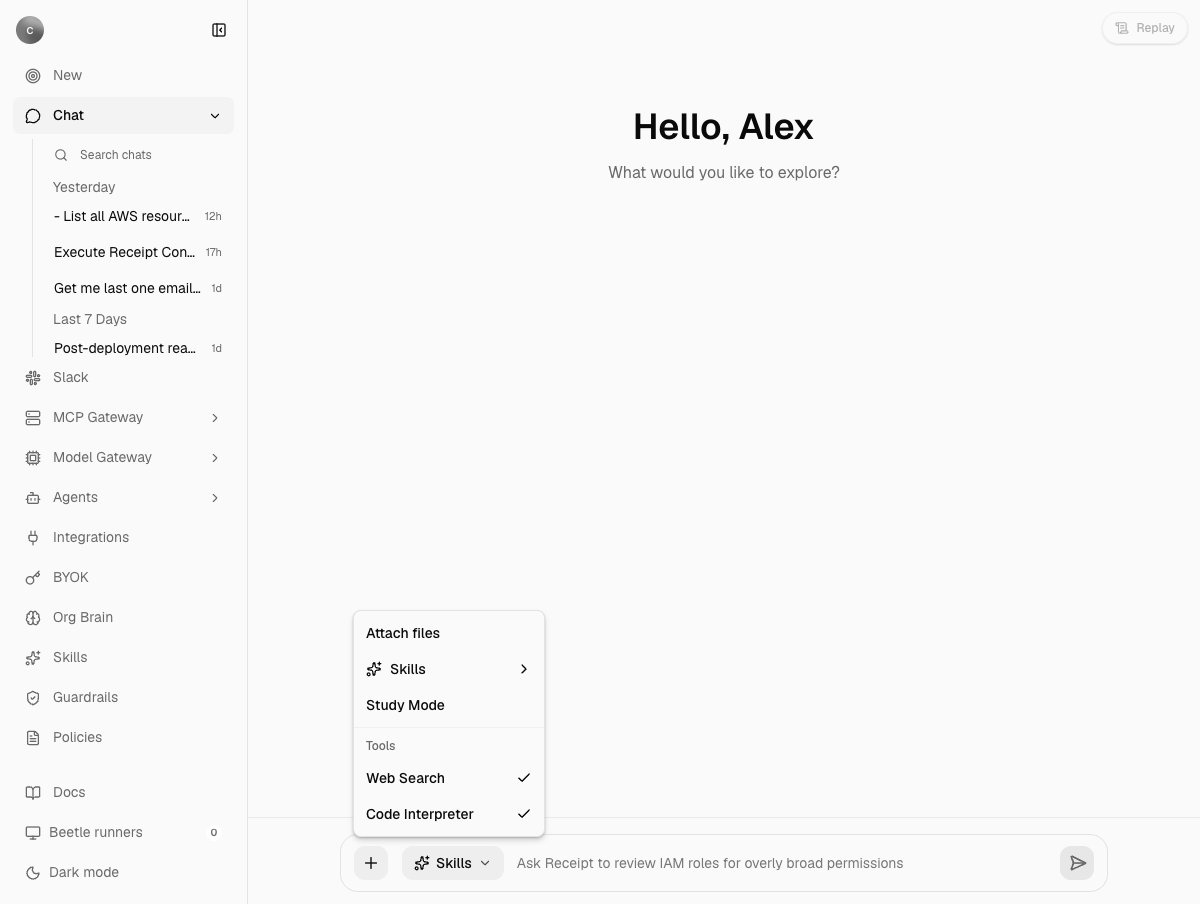
A new chat with the + menu open. The greeting shows the signed-in user's name (a placeholder here), the placeholder prompt is one of the rotating examples, and the menu lists Attach files, a Skills submenu, Study Mode, and a Tools group with Web Search and Code Interpreter checked. There is no Max entry, because the active model has no separate maximum window.
+ menu opens:
- Attach files — attach up to ten files per message. At the limit, the label itself changes to Attach files (max reached). Accepted types and size limits are on Files and attachments.
- Skills — a submenu with one item, Create skill, which opens the organization’s Skills page on its list, not on the upload picker the chip’s identically named item opens. It is a shortcut for administrators; picking a skill to use is the job of the Skills chip described below.
- Study Mode — the only mode Receipt ships today. It pins the thread to one fixed study model, injects a study system prompt, and disables all provider-native tools for that thread; while it is on, the Tools group disappears from this menu. If your organization enforces a mode, the checkbox is disabled and its tooltip reads
Study Mode is enforced by your organization. See the callout at the top of this page before you turn it on. - Max — appears only when the active model has a distinct maximum context window to switch into. If the model doesn’t have one, you won’t see this control at all.
- Tools — a checkbox group listing the provider tools available to the active model, hidden while Study Mode is on.
The Skills chip
Beside+ sits a Skills chip. It lists the organization skills an owner or admin has enabled — versioned instruction files a background run can follow — and picking one appends its /slug to whatever you have already typed. The slug is ordinary text: Receipt has no slash-command parser, so the router and any background run read it like the rest of your prompt. Using skills in chat covers the menu, what a run does with the slug, and how to have Receipt draft a new skill from the conversation; the files themselves are described under Skills.
What you can’t change here
The model picker and the reasoning-effort picker are not currently mounted in the composer. There’s nothing to click for either one — a new chat opens on the default model,openai/gpt-5.6-luna unless your organization’s policy rules it out, and a thread then keeps the model recorded with it. The allowlist that default is drawn from holds OpenAI-routed models only. Which models an organization can use, and how an organization supplies its own provider key, is covered in Models and providers.
Reading the context meter
Once you’re inside a thread and a model is resolved, a Context control appears showing Input, Output, Reasoning, Cache read, and Cache write from the most recent assistant reply on the branch you’re on. A Total cost row sums the branch, but appears only when your organization is using its own provider key, or the operator has turned cost display on for everyone — otherwise that row is simply absent. When the branch reaches the model’s limit, the composer stops accepting new messages and shows one of two banners:This conversation has reached the standard context limit. Switch to Max to continue with the larger window.— when the model has a larger window and you are still on the standard one. Turn on Max in the+menu to continue.This conversation has reached its current context limit. Start a new chat to continue.— when there is no larger window to switch to.
Titles and long pastes
A thread is calledNew Chat until Receipt generates a short title from your first message. If you rename a thread yourself, that permanently turns off auto-titling for it — Receipt won’t overwrite your title later.
Pasting 2,000 characters or more of plain text turns the paste into a text attachment instead of inline text, as long as the embedding feature is on for your deployment. The attachment is named pasted-text-<date>-<time>.txt — for example pasted-text-2026-09-08-14-05-31.txt — and shows up in the composer like any other file. Rich text and pasted files keep the browser’s normal behavior.
Next step: give Receipt a goal that needs a background run.