

app.kentron.ai. Sign-up is self-service on the hosted app — no invitation is required to create your own account, and opening the root URL takes you straight to the sign-up form rather than a landing page.
Signing up
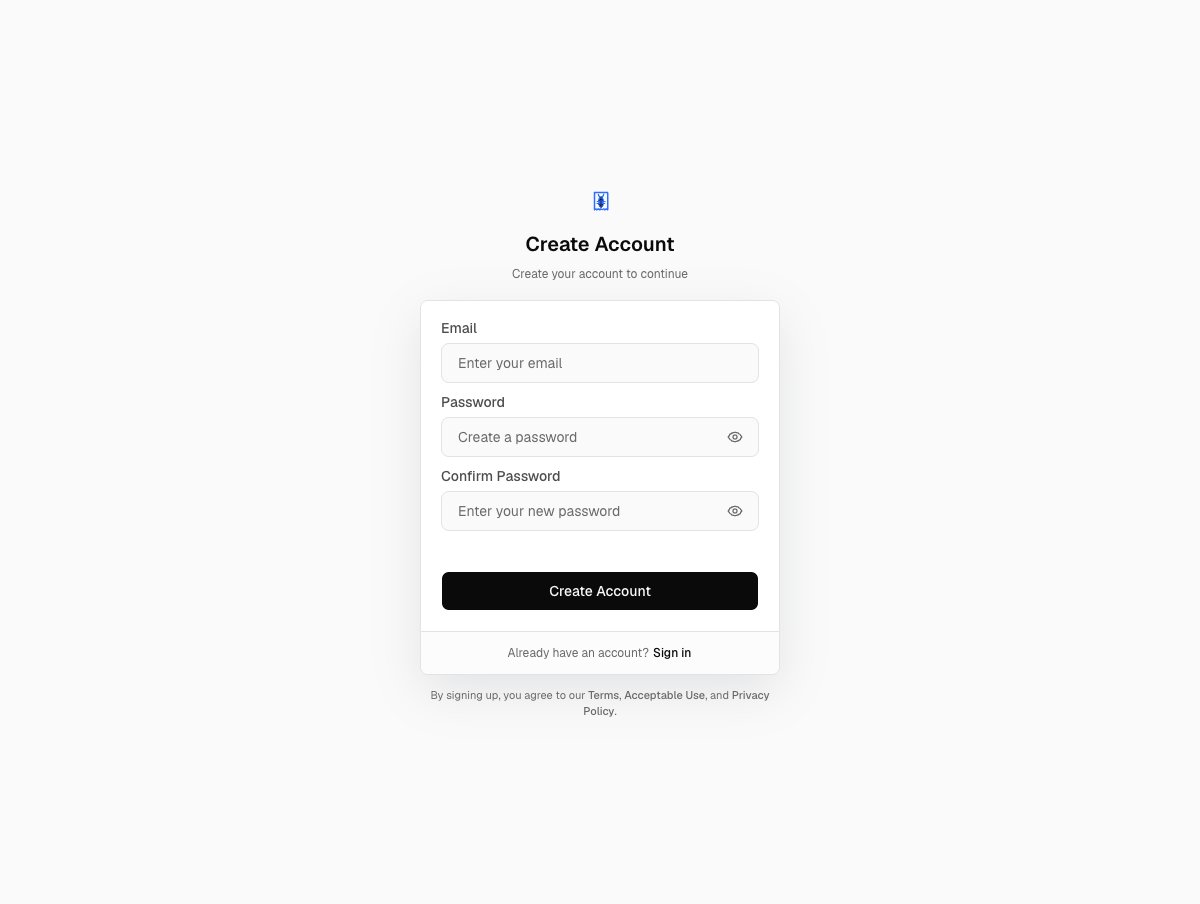
The sign-up form asks for three things and nothing else — there is no name field, no Google button and no guest option.
Create your account
Please enter a valid email address, Password must be at least 8 characters, or Passwords do not match.Verify your email
Expires in {time} countdown. The code is valid for five minutes and you get five attempts. Run out and you will see You entered too many incorrect codes. Request a new one to continue. A wrong or stale code shows whatever the auth service reports — Invalid OTP or OTP expired — and That code is invalid or expired. Request a new one and try again. is the fallback for a failure that carries no message.Receipt sets up your organization
Land in chat
What gets created with you
The new organization is named after you:<Display Name>'s Workspace. Because the sign-up form has no name field, your account starts with an empty name, and Receipt falls back to the local part of your email address for the organization name — dots, underscores and hyphens become spaces, and every word is capitalised. Someone signing up as ari.say@example.com lands in Ari Say’s Workspace. Setting a display name later on the Account page does not rename the organization.
The $5.00 credit is granted once per user, not once per organization. A unique index on the credit ledger guards it, so it does not repeat if you later create a second organization or are added to someone else’s. See organizations and workspaces for what that organization contains and billing and plans for how the credit is spent.
If you arrived from an invitation link instead, the sign-up form pre-fills the invited address and tells you This invitation is tied to this email address. — you must use that address to join. Members and roles covers invitations from the other side.
Signing back in
The sign-in page greets you with Welcome Back / Sign in to continue. Bad credentials returnInvalid email or password.
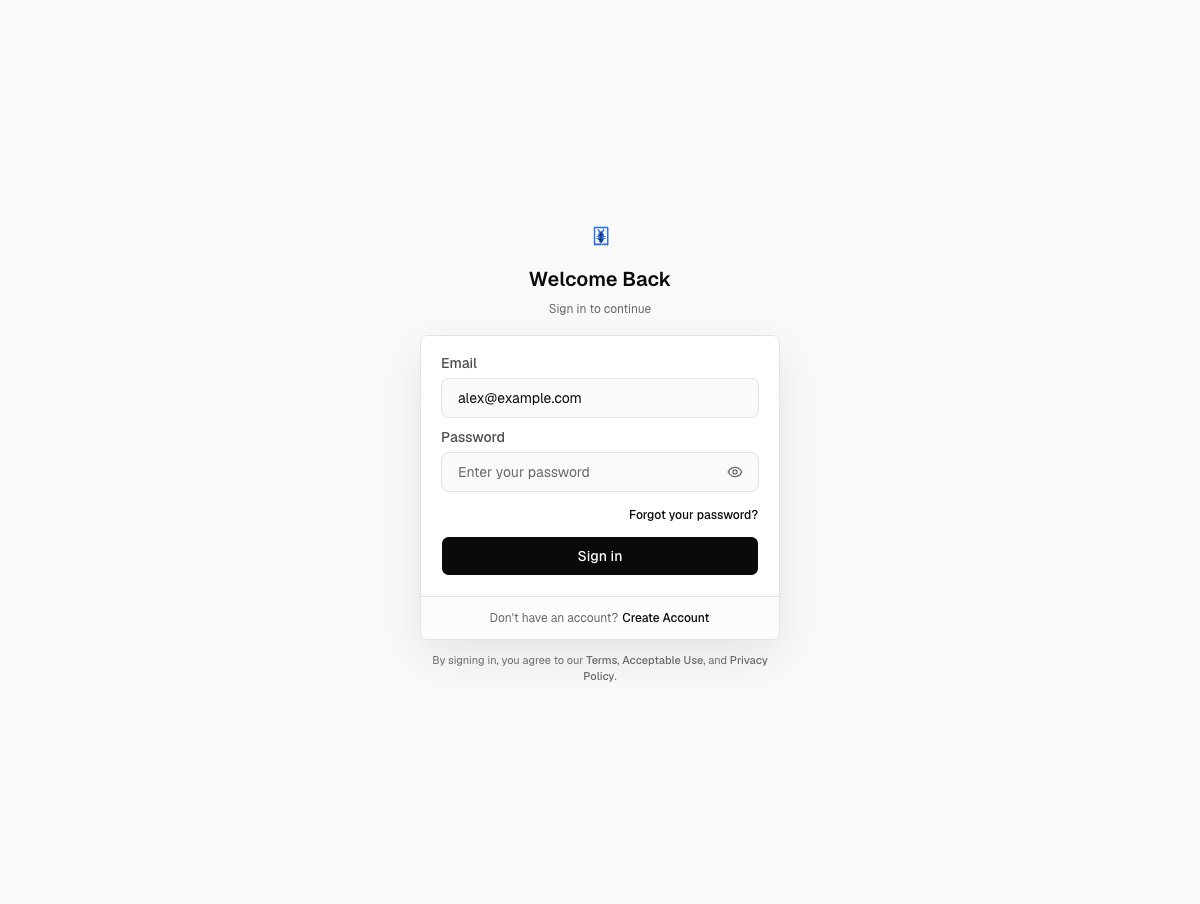
The sign-in page. Email and password are the only credentials it takes, Forgot your password? sits directly under the password field, and Create Account at the foot of the card is the way back to sign-up.
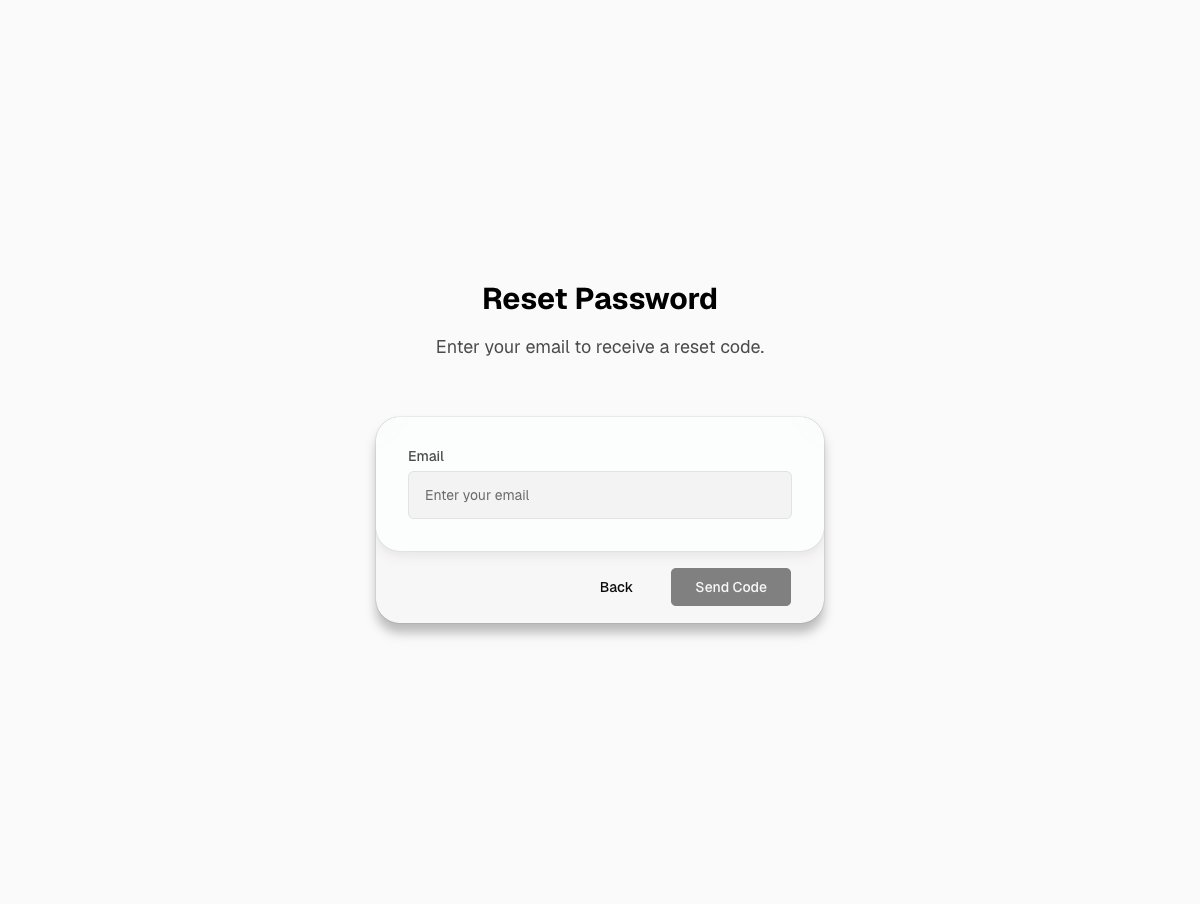
Password recovery is a code sent by email, not a reset link — Send Code is greyed out until an address is entered.
Enter the code sent to {email}. — and then set the new one on Create Your New Password, confirmed with Update Password. A code that is not exactly six digits sends you back a step with Enter the 6-digit code we sent you by email. Resetting your password also revokes every existing session on your account.
If your account already has two-factor authentication enrolled, sign-in inserts a Two-step verification step: Before continuing, enter the code from your authenticator app.
Account settings
Your account page is at/settings, reached from the organization avatar in the sidebar. Unlike the organization settings pages, it is open to every signed-in user regardless of role.
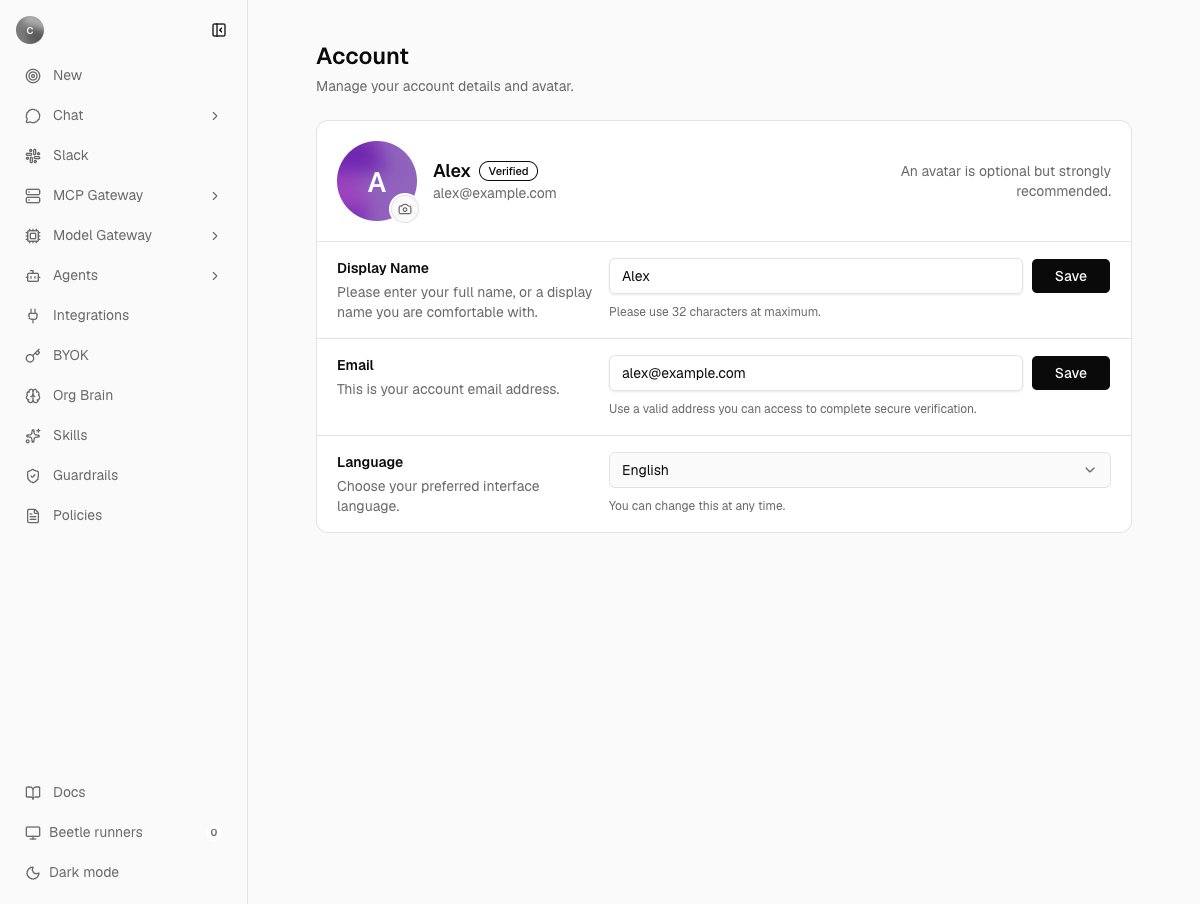
The Account page. Display Name and Email each carry their own Save button; Language is a bare select that applies the moment you pick one, which is why there is no page-level save.
Security
The Security page is at/settings/security.
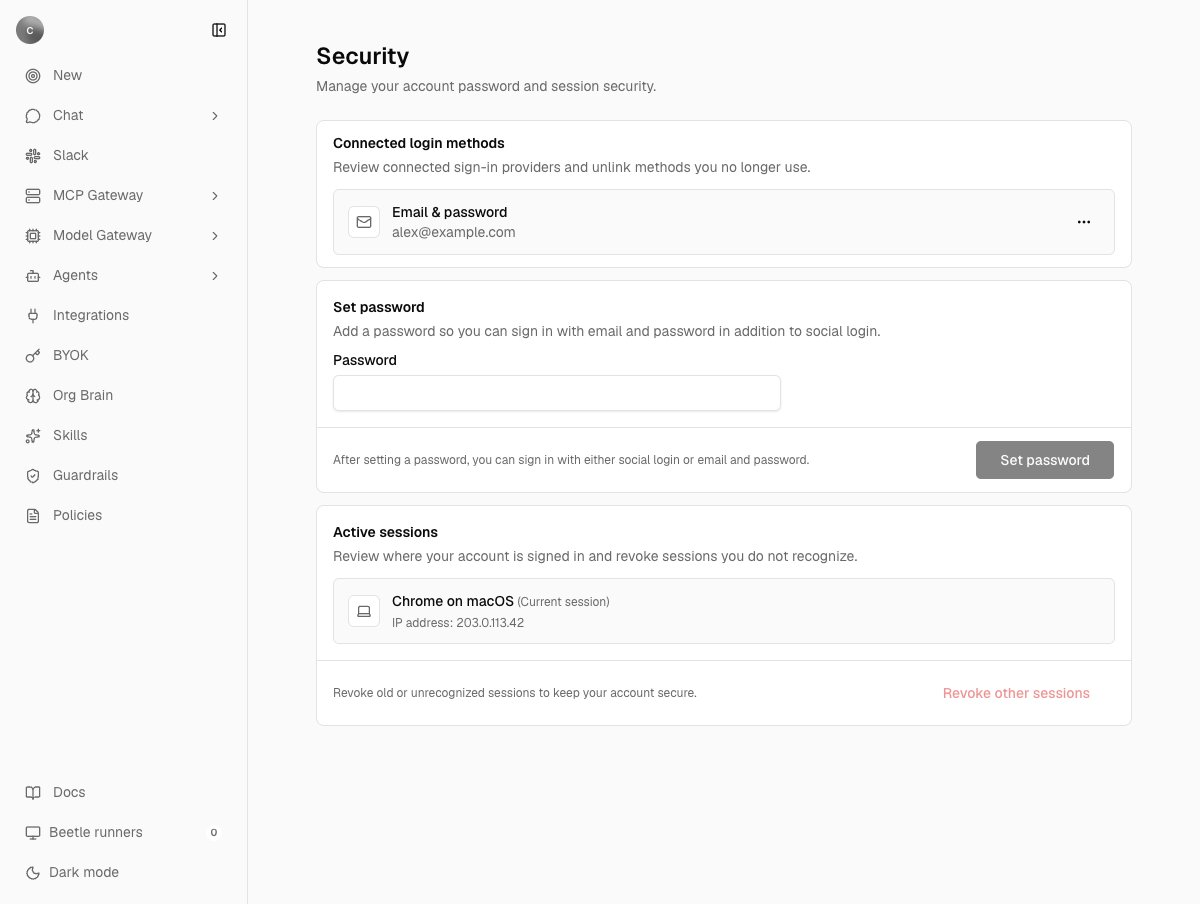
The Security page: connected login methods, the password panel, and every device your account is signed in on with its IP address.
You must keep at least one login method connected.
Change password asks for your current password and a new one, and warns you plainly: You will be signed out from other sessions after changing your password. If your account has no password yet, the same panel appears as Set password and skips the current-password field.
Active sessions shows each signed-in device with its IP address and marks the one you are using as the current session. Revoke them one at a time, or use Revoke other sessions to clear the rest at once. With nothing else to clear you get No other active sessions to revoke.
On a self-hosted instance
Identity works differently when you run Receipt yourself. The first account is the admin account you create in the setup wizard —Create your admin account, Finish setup by creating the first admin account. — after claiming the instance with its setup token, and a fresh instance then defaults to invite-only signups.
Several of the flows above are switched off at the auth layer on a self-hosted instance: email delivery for verification and password recovery is refused with Email verification and password recovery are disabled for self-hosted instances., social sign-in with Social auth is disabled for self-hosted instances., changing your email address is turned off entirely, and /auth/sign-up redirects to the sign-in page once setup is complete. Plan on managing passwords out of band, because there is no in-product recovery path. The platform signup credit is not granted either — it exists only on the hosted app. Self-hosting covers the wizard and the signup policy that goes with it.
Next step: see how organizations and workspaces divide your data.