

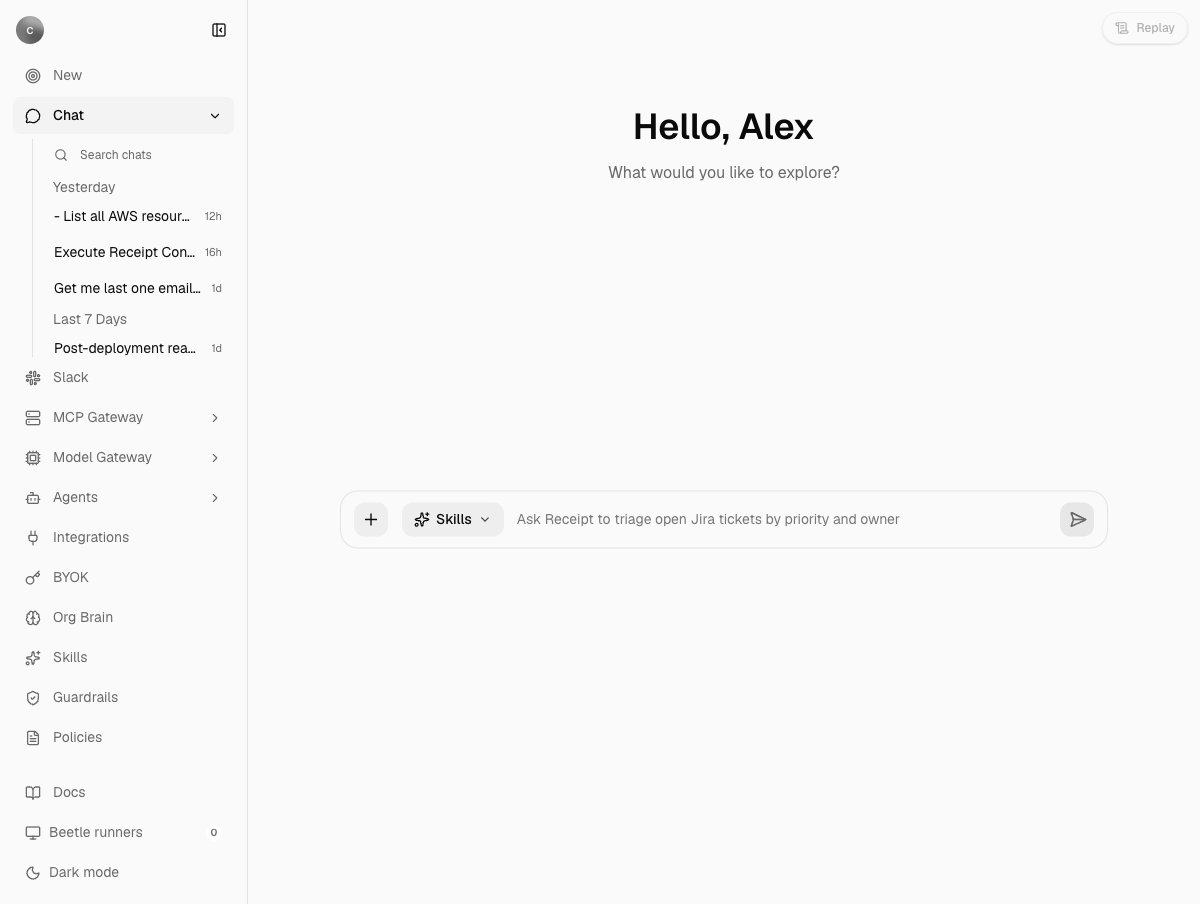
A new chat. The composer has a + menu and a Skills chip, and its placeholder cycles through example goals. The sidebar shows recent chats, Slack, MCP Gateway, Model Gateway and Agents, then the areas only an owner or admin sees — Integrations, BYOK, Org Brain, Skills, Guardrails and Policies — with the Beetle runners counter in the footer. The recent-chat list under Chat is a scroll area, so its last row is clipped at the bottom edge.
What you can do
Ask and get an answer
Learn the composer control by control, then send a question and read the reply streamed into the thread.
Run work in the background
Work that needs live data from a connected app, a repository or a terminal becomes a durable objective that outlives your tab.
Replay what happened
Open Agent replay on any thread or task to see goal, plan, work, commands, evidence and result rebuilt from receipts.
Use and create skills
Pick an enabled organization skill from the composer, or ask Receipt to draft a new one.
Work from Slack
Mention Receipt in a channel; it edits one progress message as the run advances and posts a link to the receipt.
Work from Teams
Mention Receipt and get an acknowledgement, then a single result message when the run finishes.
Watch your runs
Tasks lists objectives, Computers shows sandbox capacity and live execution output, and Sessions reviews imported agent sessions.
See how a turn is processed
The routing step, the background path through Factory, and where the gateways sit.
Three ways a message is handled
Every message first goes through a routing step that returns one decision and does nothing else: it never writes an answer and never calls a tool.- Answer directly. Chosen when your message can be answered from the visible conversation and what Receipt knows about your connections. The reply is streamed into the thread with no tools attached.
- Draft or save a skill. Chosen when you ask for a brand-new organization skill. A draft appears in the thread; it is saved only when you explicitly ask, and saving needs an owner or admin. Web chat only.
- Run in the background. Chosen when the answer “requires current private, local, repository, terminal, connected-account, or other external evidence”. Naming an app is not enough; a question about a public API is still a direct answer. The thread shows
Beetle queued job <jobId>.(Beetle is the interface’s name for the assistant), then progress lines, then the result. Read-only work runs as an investigation; anything that creates, updates or deletes, edits code or configuration, deploys, opens a pull request or produces a downloadable file runs as a delivery.
Beetle stopped before completing this response. with Reason: Receipt couldn't determine the access needed for this request. Please retry; no task was started.; Slack posts that sentence on its own. Teams is the exception and falls back to a background run; see Receipt in Teams. The routing step and the gates around it are described in full on how it works.
Read-only by default, and what that does not mean
Every connected app exposes operations classified as read or write. Read operations are enabled by default. Write operations are off until an owner or admin enables them for that connection under Manage tools on the Integrations page. Saving that dialog replaces the default with an explicit list, so from then on the connection exposes exactly the operations on it, reads included. A background run that needs an app nobody has connected, or one whose saved list is empty, never starts: the thread replies with what to connect or enable instead. Background runs quotes each reply. That list is the whole gate. A background run is granted write access whenever its objective needs a connected app, so once a write operation is enabled a delivery run can call it without asking you first.Limits to know before you start
Rate limits, context limits and the exact messages behind each of these are in errors and limits.
How it fits
- Receipt’s own model calls pass through the LLM Gateway, one policy and credential checkpoint. There is no external endpoint for other applications.
- Connected apps are reached through the MCP Gateway. Provider credentials stay in Nango; a run fetches short-lived credentials at call time rather than receiving the stored provider secret.
- Background runs execute in Factory: an objective is planned into tasks, each executed by the Codex CLI inside a disposable sandbox computer. See how it works and the Factory engine.
- Skills, connectors and the agent inventory live in the Catalog.
- Receipts are SHA-256 hash-chained and verified on replay; every view is rebuilt from them. See receipts and streams.