

SKILL.md file per skill, enable the ones you want in use, and every new run receives them as a read-only catalog the agent can draw on.
The Skills page is where they are managed: upload, enable, disable, view and delete, with a receipt behind every change. Picking a skill inside a conversation is covered in using skills in chat; the file format itself is in writing a skill.
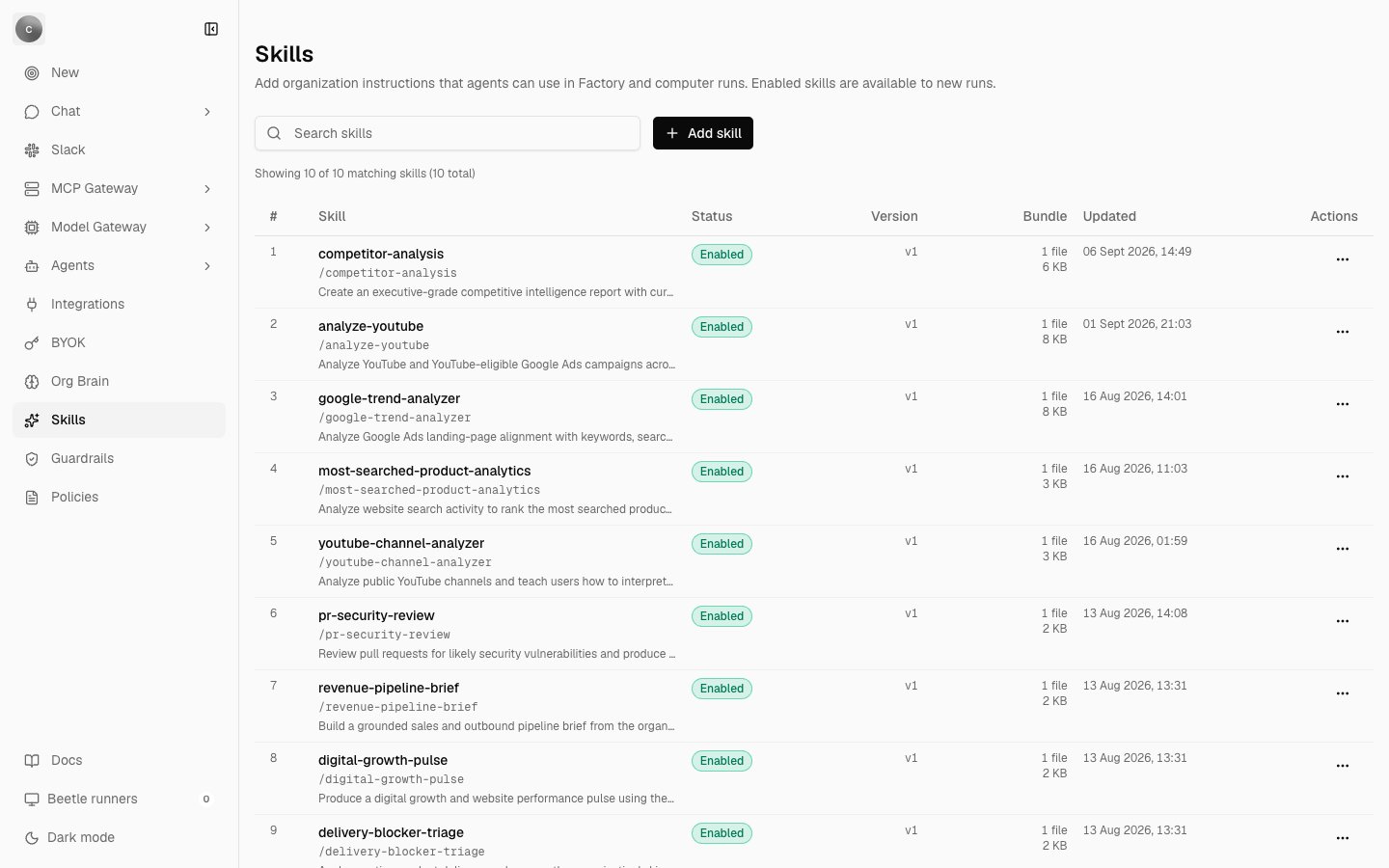
The Skills page for an organization with ten skills uploaded. Each row shows the skill's name, its /slug in monospace and the start of its description, then the status badge, the version, the bundle's file count and size, and when it last changed. The count line above the table reads Showing 10 of 10 matching skills (10 total).
Opening the Skills page
Skills are at/organization/settings/skills, reachable from the Skills icon in the organization settings rail. Three shortcuts lead to the same page:
Like the rest of organization settings, the page is owner and admin only. A member who follows any of these shortcuts is sent back to the app root — there is no access-denied screen — and the server enforces the same rule independently, refusing a write from anyone else with “Only organization owners or admins can manage skills.” Using a skill is not restricted this way: the composer’s picker offers enabled skills to every member.
The page describes itself as:
Add organization instructions that agents can use in Factory and computer runs. Enabled skills are available to new runs.The primary action is Add skill, which becomes Adding skill with a spinner while the upload is in flight. A Search skills box filters the list by name, slug, description or version, and the count line reads
Showing {n} of {m} matching skills ({total} total), or “Loading skills” while it resolves. With no match: “No skills found. Try a different search.” The table shows 25 rows a page, and the pager under it also offers 10, 50 and 100.
Before you upload anything the empty state reads “No organization skills yet” — “Upload a SKILL.md bundle to make reusable instructions available to new agent and computer runs.” — with an Add your first skill button.
What you can upload
The upload is a single file, and the contract is strict.
The file picker accepts
.md, .markdown and text/markdown. These three checks run in the browser, and a rejection appears in an error banner above the table rather than as a passing toast; a failure raised by the server appears in the same banner and as a toast. What has to be inside the file — the --- frontmatter block, name and description, and the parser’s exact complaints — is on writing a skill.
The underlying bundle format supports up to 128 files, with a path limit of 240 bytes and a total of 1 MiB. The upload surface in the application accepts exactly one file — the
SKILL.md itself.Versions, not replacements
Uploading the same slug again adds a new version: the version number advances, runs receive the newest version, and the earlier one stays on the skill’s receipt stream. The file input clears after each upload so you can re-upload the same file as a replacement version immediately. Re-uploading a file whose content has not changed at all is a no-op: no version is added, and the page reports nothing. Versions are recorded as receipt events —organization.skill.created for version 1, then .version_added for every version from 2 upward, alongside .save_acknowledged, .enabled_changed, .archived and .deleted. A skill’s identity is its slug, derived from its name, so two admins uploading the same name land on one skill rather than forking into two.
The table and the detail view
Columns are # / Skill / Status / Version / Bundle / Updated / Actions. The skill cell shows the name, the/slug in monospace, and the description. Status is one of the badges Archived, Enabled or Disabled. Version renders as v{n}; Bundle shows the file count and the size in B, KB or MB.
Opening a skill shows a read-only detail dialog — “Read-only organization skill instructions from the authoritative receipt-backed bundle.” — exposing Slug, Version and Content hash, with a file picker when the bundle holds more than one file and a Copy file button that flips to Copied. A binary file renders as Binary file · base64 encoded · {size} rather than content. If the copy fails, you get “Unable to copy this file. Select the text and copy it manually.”
Skill metadata is replicated to owner and admin browsers; bundle contents stay on the server and are fetched only when you open the detail dialog. Separately, the name, slug and description of enabled skills reach every member’s browser, because that is what the composer’s picker shows.
Row actions
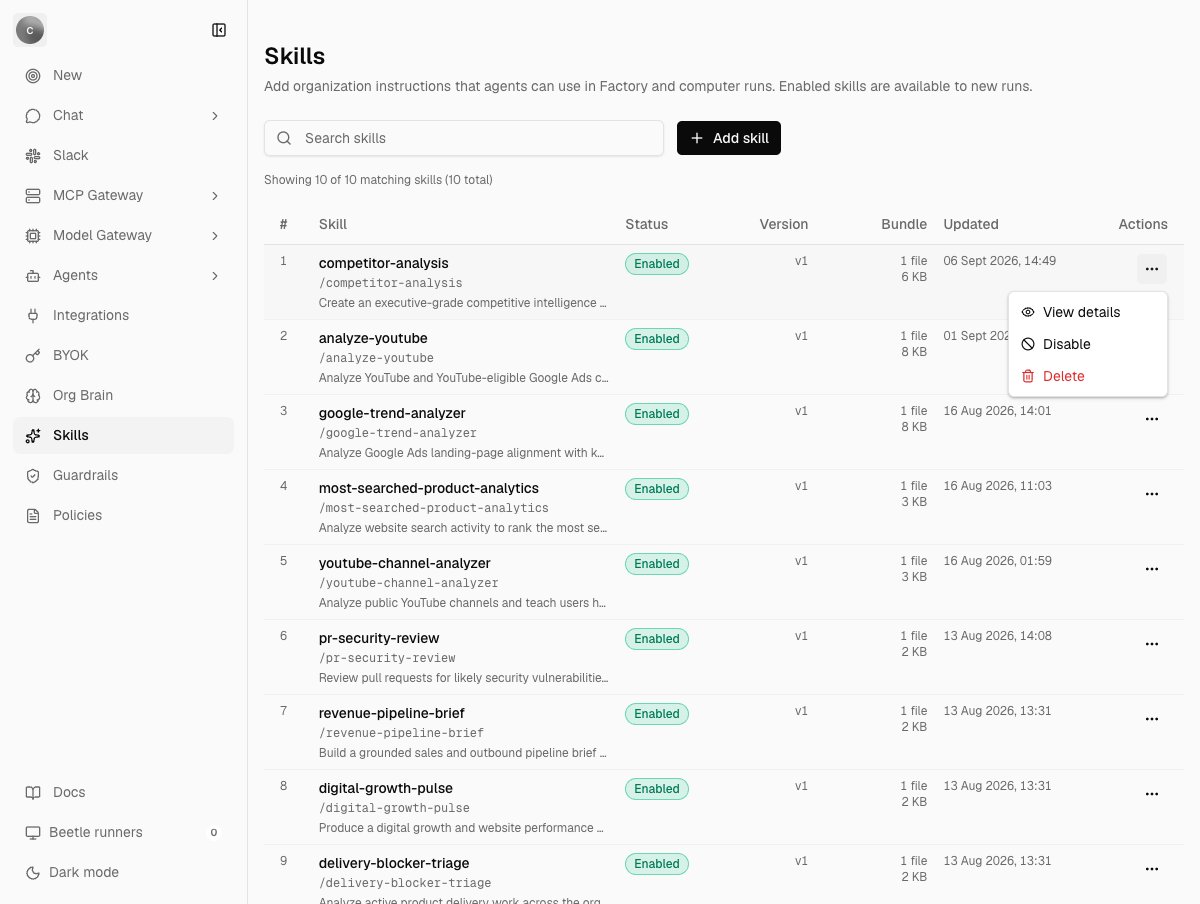
The Actions menu open on the first row, offering View details, Disable, and Delete in red. On a disabled row the middle item reads Enable instead — and there is no Archive action anywhere in this menu.
There is no Archive action in the table. Archived is a status a row can carry — an archived row shows the Archived badge, offers no enable or disable toggle, and can only be deleted — but nothing in the interface puts a skill into that state.
Delete {name}? It will be removed from this list and will no longer be available to new agent or computer runs., with the help line “Existing receipts keep their version and content hash for audit, and the skill name becomes available again.”
So deletion is forward-looking: new runs stop receiving the skill, every receipt already written keeps the exact version and content hash it ran with, and the name becomes free to use again.
Where an enabled skill goes in a run
Enabled skills are snapshotted when the work packet for a task is written — the packet being the instruction bundle Receipt hands to the disposable computer that will run the task. That is what the page means by “Enabled skills are available to new runs”: enabling or disabling a skill reaches the packets written after the change, not a task already executing. At that moment every enabled skill is written into the task’s workspace underreceipt/skills/organization/<slug>/, with a catalog at receipt/skills/index.json listing each skill’s name, description, version, content hash and the path to its SKILL.md. The registry that writes it enforces its own guards: 256 files per skill, 4 MiB per file and 8 MiB per skill. The tree is then locked read-only — files and the index readable but not writable, directories not writable — and the agent is given no way to refresh it. Nothing a worker changes there can come back as a patch: those paths are excluded from patch collection and rejected outright if they appear anyway.
Organization skills stay in this workspace catalog and are never copied into the agent’s home directory. The packet’s summary tells the agent — Codex, the coding agent Receipt runs inside the sandbox — only where the catalog is, and that the choice of what to open is its own:
All enabled organization skills are mounted for this run and cataloged at receipt/skills/index.json; Codex chooses which catalog entries to load.
Mounting follows the run’s authorization. A run started from chat, Slack or Teams carries your organization; an objective started with no organization context — from the in-repo developer CLI, for example — receives no organization skills at all.
One of the skills that ships with Receipt spells out the reading discipline it asks for. Nothing in the run’s prompt points the agent at that skill — it is copied into the agent’s home alongside the others — so treat this as the intended practice, not as an instruction every run is guaranteed to receive:
Enabling a skill therefore puts it in front of every new run; it does not compel the run to follow it, and it never widens what the run may do. Write access is still decided per connection, in tools and permissions.
- Read
receipt/skills/index.json. It is the complete compact catalog for the run, including each skill’s name, description, version, content hash, and guest-workspace-relativeskillPath.- Select the smallest relevant set using the task, plan, and catalog metadata. Do not read every
SKILL.mdmerely because it is mounted.- Read each selected
skillPathcompletely before acting on it. Resolve any relative references from that skill’s directory.