

Opening Replay
The Replay pill sits top-right of the chat page. It stays disabled until the current chat has a thread or a background run to inspect. The Tasks page at/tasks has a Receipts button on each run that opens the same dialog for that objective; see Monitoring your runs.
The dialog’s eyebrow reads Agent replay. Below the title you see the objective id and, when you opened the dialog from a chat, the run’s duration and when it started; then a row of status pills: the run’s status (for example Completed), {n} meaningful actions, {n} connected apps when any were used, {n} receipts, and Live. Hovering Live shows Updated {time}, meaning when the view last loaded, or Waiting for receipts before the first load finishes. The dialog subscribes to the receipt event stream while it is open, but it does not repaint on its own in this release: use the refresh button (Refresh agent replay) to pull in receipts that landed since the view loaded.
Before a run exists the title reads Waiting for a run.
The three tabs
A tab strip labelled Replay views offers Summary, Transcript and Work. The dialog opens on Transcript.Summary
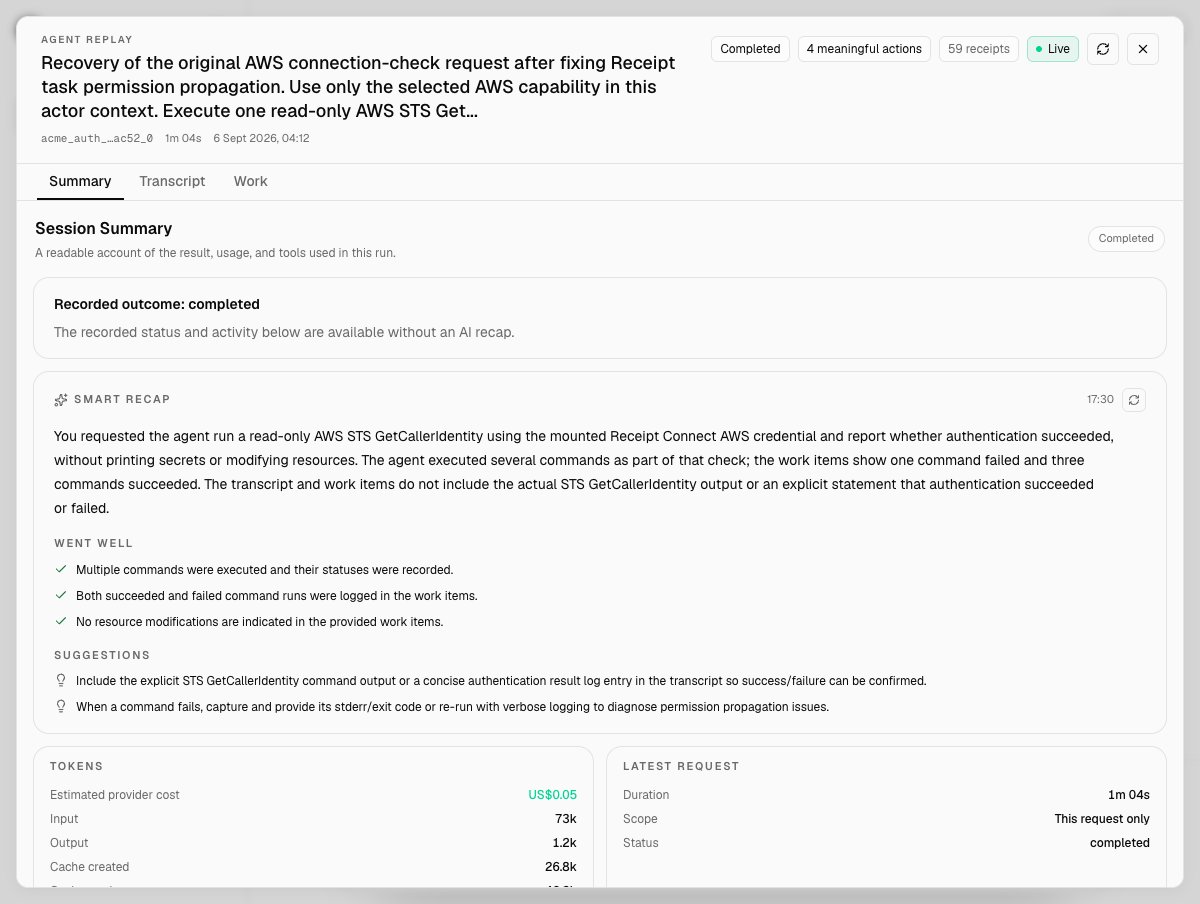
The Summary tab of a completed run. The header pills read Completed, 4 meaningful actions, 59 receipts and Live. Recorded outcome shows the fallback sentence because this run produced no final assistant text; the Smart recap below it was generated from the receipts, and the Tokens and Latest request cards carry the cost and duration.
A readable account of the result, usage, and tools used in this run.
The Recorded outcome section comes first, headed Recorded outcome: {status}. It shows the last assistant message of the latest run, up to 2,000 characters. When the run left no assistant text it reads The recorded status and activity below are available without an AI recap. This section needs no model call; it is always available.
Smart recap is an AI-written reading of the same receipts, and it is optional. Opening the Summary tab requests it once per session; while it loads the panel reads Preparing optional AI recap…. A finished recap shows a few sentences, a Went well list and a Suggestions list, the time it was generated, and a Regenerate summary button. If it is not ready, the panel offers Generate summary, or Try again after a failure.
The recap has three states that read differently:
openai/gpt-5-mini unless CHAT_RECEIPT_RECAP_MODEL names another model. Without a key it is unavailable rather than silently replaced by a machine-written blurb. A generated recap is stored and reused on later views until the conversation changes or you regenerate it, so opening Summary again does not cost another model call. Generation is bounded: the client gives up after 25 seconds with The AI recap took too long. Your recorded outcome remains available. You can try again.
Below the recap sit the stat cards:
- Tokens — Estimated provider cost, Input, Output, Cache created, Cache read, and Saved by cache read when the cache returned tokens. When nothing was recorded, the cost row reads
Not recordedrather than showing a zero, so you can always tell an untracked cost apart from a genuinely free run. A run with no usage at all readsToken and cost data were not recorded for this request. - Latest request — Duration, Scope (
This request only) and Status. - Conversation — Messages, User prompts, Assistant replies and Proof events, the last being the receipt count.
- Action outcomes — a bar and counts for Succeeded, Running, Warnings and Failed.
- Work mix — counts of Commands, Tool calls, Connected-app calls and Verified outputs.
Work
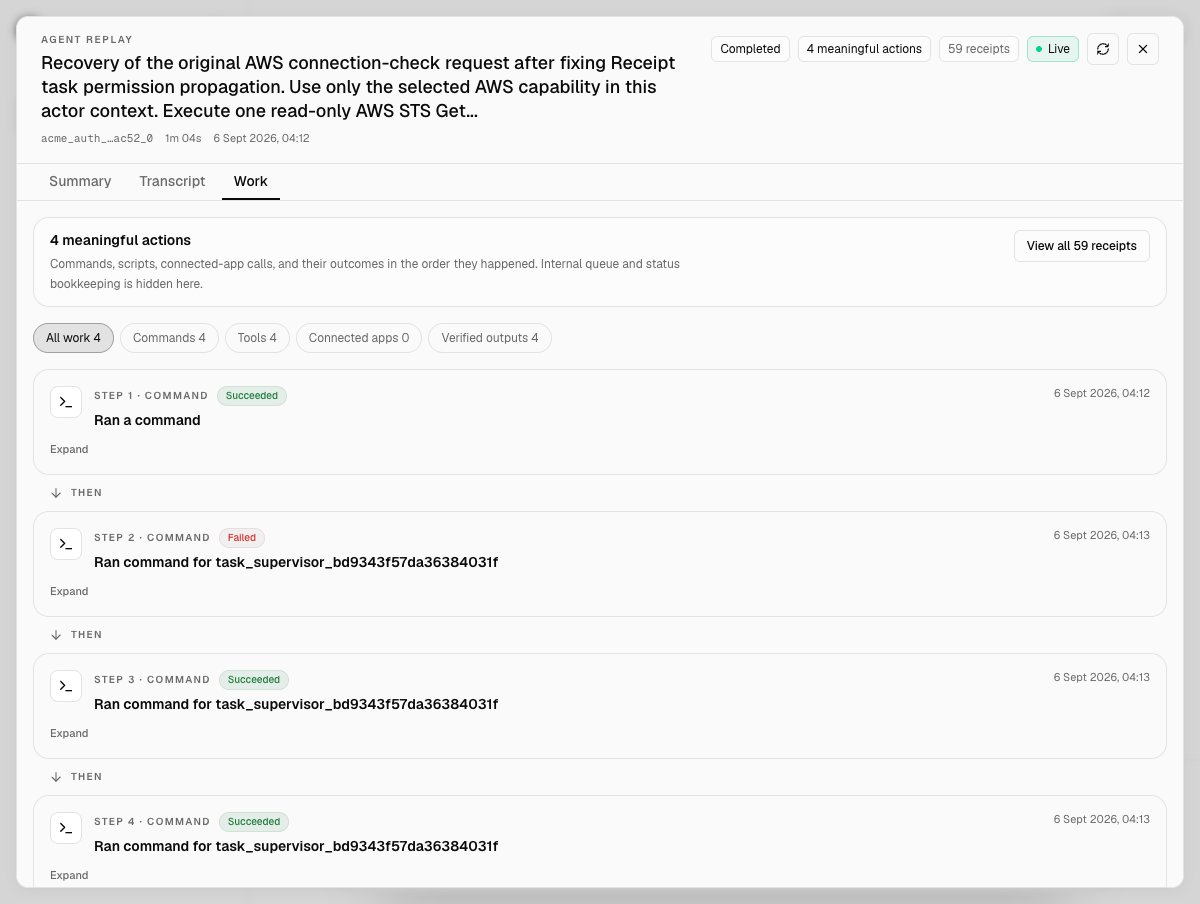
The Work tab of the same run: 4 meaningful actions, a View all 59 receipts button, filter chips with counts, and four numbered command steps joined by Then connectors. Step 2 failed and steps 1, 3 and 4 succeeded; each step opens with Expand.
{n} meaningful actions, described as Commands, scripts, connected-app calls, and their outcomes in the order they happened. Internal queue and status bookkeeping is hidden here. The View all {n} receipts button switches to the Transcript tab.
Chips filter the list, each carrying its count: All work, Commands, Tools, Connected apps and Verified outputs. Choosing Connected apps replaces the list with a card per connected app the run used. While the list is being derived the tab reads Reconstructing work from receipts.
Each item is a numbered step typed as a Command, Tool, Connected app or Evidence, with a status badge of Succeeded, Failed, Needs attention, Running or Observed, its title — Ran a command, or Ran command for <task id> when the receipt names the Factory task that ran it, which is what the capture above shows — and the time it started. Expand shows the tool that ran, What ran with the command itself, an optional Show inputs block, What happened with the recorded outcome, and the step’s Receipt checkpoint #{n}. Consecutive steps are joined by a Then connector.
Transcript
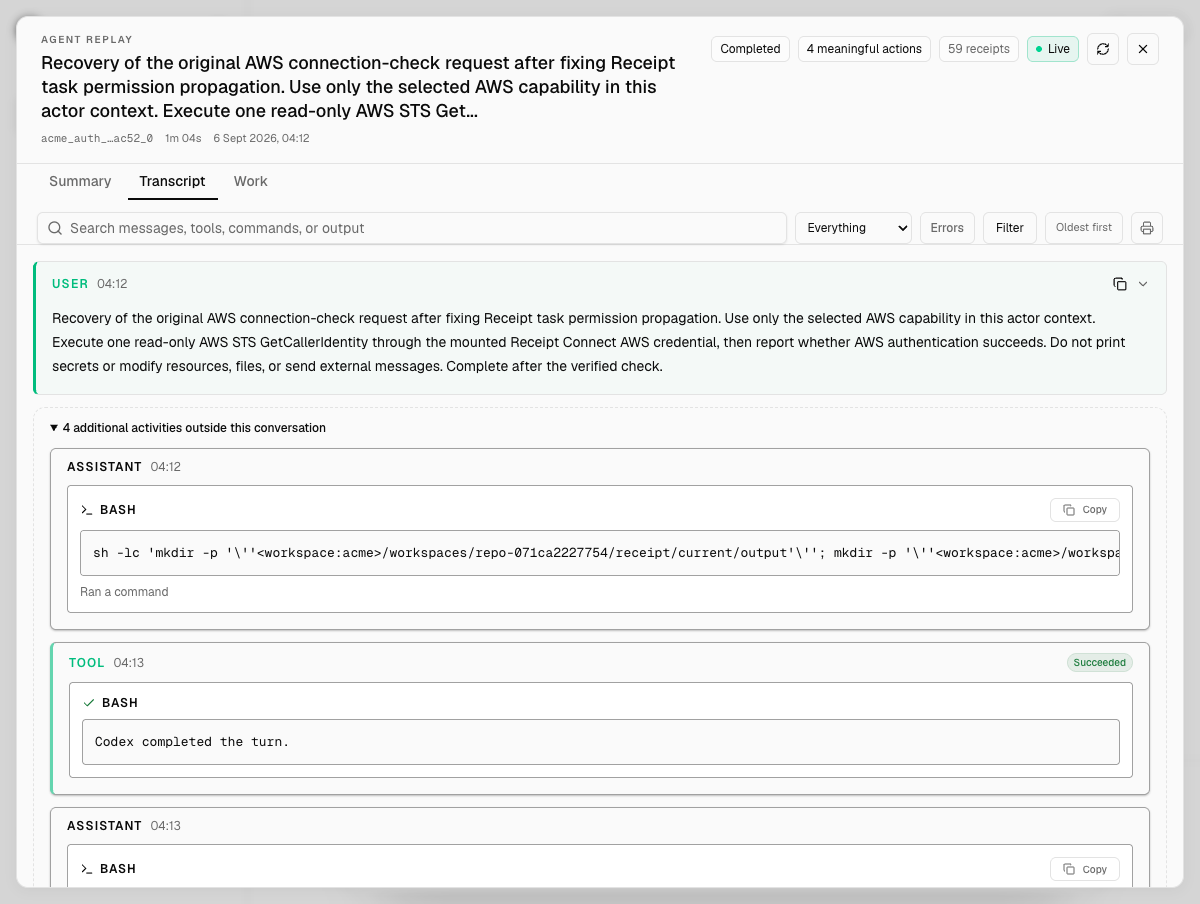
The Transcript tab. The toolbar holds the search box, the activity select showing Everything, an Errors toggle, the Filter popover, the Oldest first label and the print button. The USER turn is the run's request; the expanded group beneath it, 4 additional activities outside this conversation, holds the assistant's BASH command blocks and a TOOL entry marked Succeeded.
{n} additional activities outside this conversation. When you open a run from the Tasks page, the transcript starts with the objective’s request as the user turn and lists all of its work in that group. A run whose recorded request begins with objective handoff for has no request worth showing, so the tab falls back to the receipt log below.
Tool blocks are labelled with the tool that ran (for example BASH), show the command and its output, and carry a Copy button; a long message offers Show full message.
The toolbar filters what you see:
- Search — the box reads
Search messages, tools, commands, or output. - Activity — a select that defaults to Everything, with Problems, State changes, Evidence, Commands, Jobs, Memory and Computer. Each option keeps receipts whose text mentions a fixed set of words; Problems, for example, matches
error,failed,blocked,timeout,stale,missing,invalidanddenied, and Jobs matchesjob,queue,lease,workerandcontrol. The Errors button is a shortcut that toggles Problems. - Filter — opens a popover with a Receipt type select. It starts at All event types and lists every receipt type present in the run, alphabetically, with its count, in the form
{type} ({count}). On a background run you will typically see types such asobjective.created,computer.command.started,computer.command.stdout.observed,computer.command.completed,computer.command.failed,tool.called,tool.observed,connector.command.startedandconnector.command.completed. - Oldest first — a label, not a control: the transcript always runs oldest to newest.
No transcript messages or activity match “…”. In the receipt log below, filtering everything out reads No proof events were found for the selected filters.
The receipt log and replaying to a step
When Receipt has no conversation text to rebuild, the Transcript tab shows the receipt log instead: every receipt in the run, oldest first, 200 to a page, with a search box that readsSearch hash or payload and the same activity, Errors and Filter controls. The tab’s live announcement then says Receipt log rather than Transcript.
Selecting a receipt expands it into an inspector with two views:
- Overview — a sentence explaining what the receipt means, then Status, Recorded, Agent and Source step. A command receipt also shows Command the agent ran and its Output.
- Raw receipt — the full record as a JSON tree, with a Copy receipt button that briefly reads Copied.
Rebuild the agent state through global checkpoint #{n}. This is a safe preview and never changes the receipt log. Pressing it (the button reads Replaying… while it works) folds the receipts up to that checkpoint into the run’s derived state and shows Replay preview ready with State at Global #{n}, a list of fields that changed as before → after, or No visible state changed at this step., and a line such as Rebuilt 4 derived views. It is a dry run: nothing is appended and no projection is modified. Replay needs a background run, so the button is disabled on a chat that only received direct answers. If the preview cannot be built for the selected receipt you see Replay preview is not available for this receipt.
Receipts are tamper-evident, SHA-256 hash-chained records; the run’s derived views are rebuilt from them, never the other way round. How the chain is stored and replayed is covered in Receipts and streams.