

Save a key on the BYOK page
The BYOK page is at/organization/settings/byok, reachable from the BYOK item in the organization settings rail. It is titled “BYOK” and describes itself as “Optional: use your organization’s encrypted provider keys instead of platform credit (Bring Your Own Key).” That word optional is accurate: without a key, requests run on platform credit. With one, matching requests execute against your key instead.
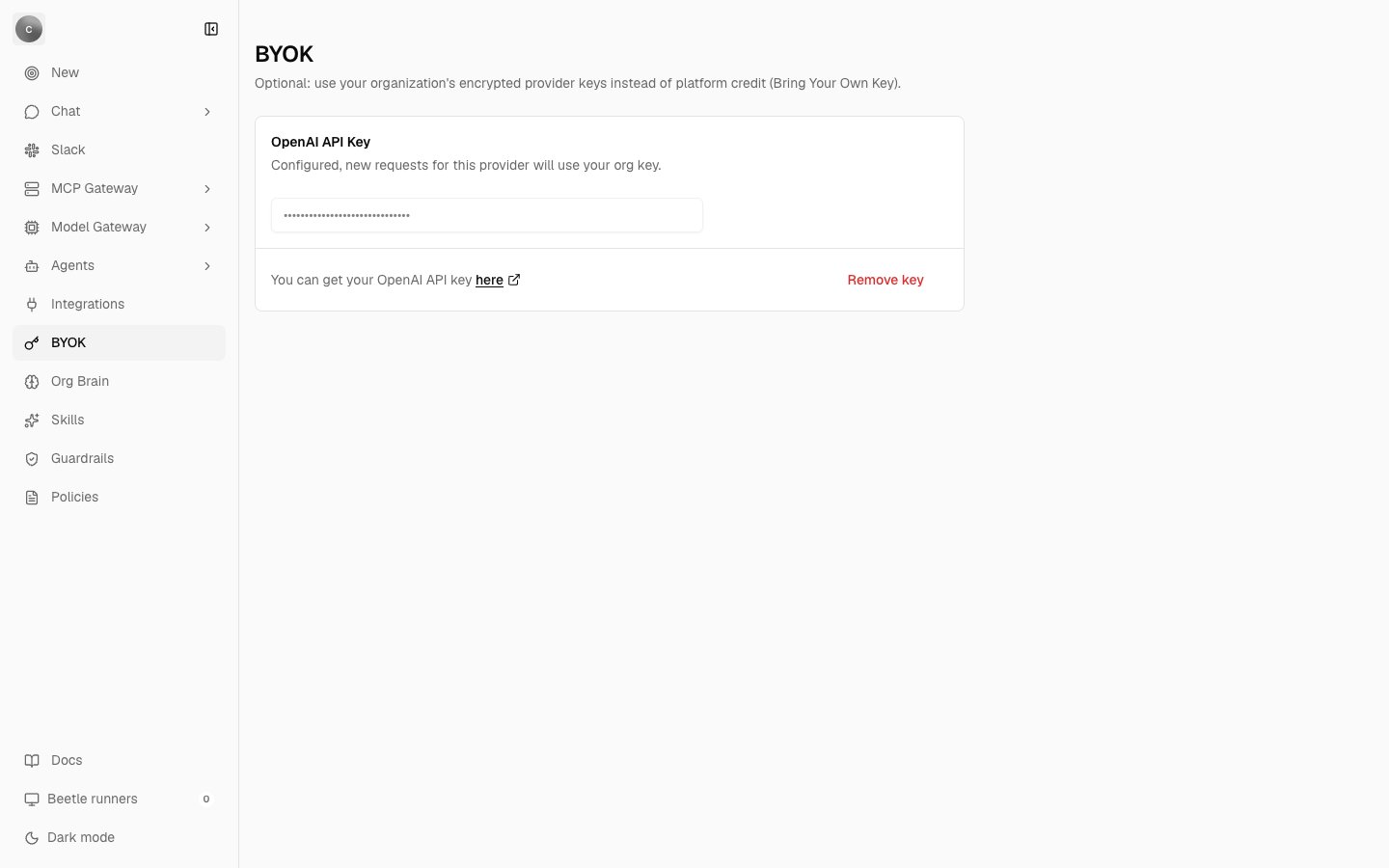
The organization BYOK page with a key already stored. A configured key shows as a row of dots in a disabled field, and the action turns into a red Remove key.
- Configured — “Configured, new requests for this provider will use your org key.”
- Not configured — “Not configured, requests will continue using Receipt defaults.”
Which providers appear
The runtime supports two providers for BYOK — OpenAI and Anthropic — and both are executable in chat. The page, at this release, renders OpenAI only. Anthropic is on a hidden list that the page’s provider ordering filters out. That hiding is a presentation decision and nothing more: a key already stored for Anthropic stays encrypted in the database, and the gateway keeps honouring it at request time. So if your organization saved an Anthropic key before it was hidden, it is still in force even though the page no longer shows it.Background runs — the durable objectives Receipt queues instead of answering you directly — are OpenAI-only. Factory, the engine that runs them, looks up provider
openai and calls the OpenAI SDK, so an Anthropic key is honoured for direct chat answers but never for a background objective. See Models and providers for what else is catalog preview rather than a working route.Validation happens before storage
Two layers run when you save, and both must pass. Layer 1 — format. A local check on the shape of the string:
Any other provider gets only the non-empty check.
Layer 2 — a live call to the provider. Receipt makes one bounded, non-mutating request with the key you supplied:
GET https://api.openai.com/v1/models with a bearer token for OpenAI, or GET https://api.anthropic.com/v1/models?limit=1 with an x-api-key header and anthropic-version: 2023-06-01 for Anthropic. The request is capped at 10 000 ms, and the response body is deliberately ignored — only the status matters.
The order matters more than the messages do: validation runs before encryption and persistence. A revoked, mistyped or wrong-provider key never becomes durable state, so a failed save leaves whatever was there before untouched.
Where a key lives: organization or workspace
Keys are stored per organization, per workspace and per provider, and the two surfaces write to different workspaces. The organization BYOK page deliberately writes into a hidden organization-wide scope rather than into whichever workspace you happen to have open: it resolves an organization-scope workspace id and passes that explicitly. The LLM keys tab on a workspace’s MCP Gateway overview embeds the same card but binds it to that workspace, so a key saved there is stored against that named workspace only.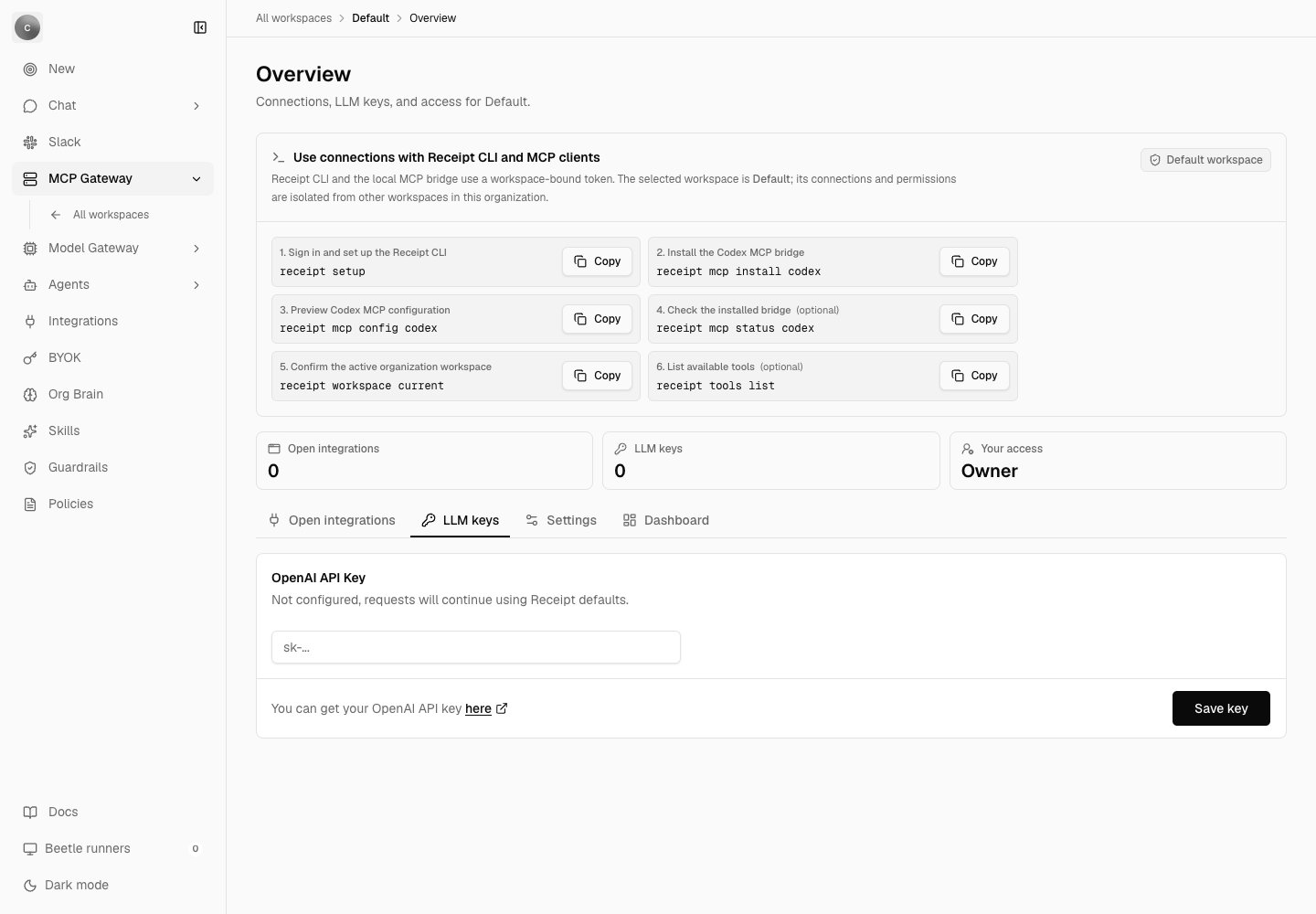
The LLM keys tab of the Default workspace's Overview page, below the CLI setup panel that heads every workspace overview. It is the same OpenAI card as the BYOK page, but everything saved here belongs to this workspace — the LLM keys tile above it reads 0 and counts this workspace's own keys, not the organization's.
How the key is stored
Keys live in theorg_provider_api_key table, keyed by organization, workspace and provider. The row holds ciphertext, an initialization vector, an authentication tag, a key version and timestamps. It never holds plaintext.
Encryption is AES-256-GCM with a 32-byte wrapping key and a 12-byte random IV, written at key version 1. The wrapping key does not come from the database — it comes from deployment configuration, in the environment variable BYOK_ENCRYPTION_KEY_B64, so that a database-only leak is not enough to recover a provider credential. Gateway configuration lists the errors that variable produces when it is missing or the wrong length, and why rotating it after keys have been saved destroys them.
The only value derived from the key that is ever written to a log is a fingerprint — the first 12 hexadecimal characters of a SHA-256 of the key. It is not reversible and it is not a prefix of the key. The structured logs around the key path carry that fingerprint and nothing secret.
Which credential actually pays for a request
Once a model has cleared the catalog and policy checks, Receipt resolves the credential in this order:- A workspace Models account credential. If the request carries a workspace and a user, and a configured Models account resolves to a credential that can route this model, that key is used. Models accounts win over everything below, and they are the one path the organization snapshot cannot short-circuit.
- A short-circuit to platform credit. If strict mode is off and the organization’s provider-key summary has been written at least once and says there is no key anywhere, resolution stops here with no override.
- The BYOK key at the request’s scope. Candidate providers are taken from the model’s own declared provider list, filtered down to the providers BYOK can actually execute against, and evaluated in that declared order. A provider the summary marks as unconfigured is skipped. The first candidate with a resolvable key wins and becomes the request’s provider-key override.
- Otherwise, platform credit. No override; the request falls through to the platform-funded route, which calls OpenAI with the deployment’s own
OPENAI_API_KEY.
Strict mode
Setting the environment variableCHAT_REQUIRE_BYOK=true makes an organization or workspace provider key mandatory instead of preferred: the lookup reads the request’s workspace scope when the turn carries a workspace and the organization scope otherwise. Strict mode disables the step 2 short-circuit to platform credit, but step 3 still applies: a provider the organization-scope summary marks as unconfigured is passed over, the trap described above under Where a key lives. It ships as false, and Gateway configuration covers the variable itself.
Strict mode adds three denials that cannot otherwise occur, each carrying a machine-readable reason:
Those reasons are what distinguish the three denials. The last of them is the one that reaches the chat as “This provider requires an organization API key, but no key is configured.”; the other two do not produce that string. A key that is present but rejected by the provider at execution time surfaces differently, as “Unable to connect to the AI service. Verify that your organization OpenAI API key is valid.” Both, and the rest of the chat error vocabulary, are in Errors and limits.
Saving a key can switch ZDR off for that provider
If your organization has Require ZDR (Zero Data Retention) turned on, saving a BYOK key opens a confirmation dialog first:- Title — “Disable ZDR for this provider?”
- Body — “Your organization requires ZDR right now. Saving a API key will turn off ZDR enforcement for requests that use your org key. Other providers keep their current ZDR behavior.”
- Confirm — “Save key and disable ZDR”