

Where it lives
Agents → Registry in the sidebar. The page is headed Agent Registry, “Discover cloud AI agents, classify autonomy, and review organization risk.”, and has two tabs, Inventory and Dashboard. The open tab is part of the URL, so a refresh or a shared link comes back to the same view, and older bookmarks to the standalone dashboard land on the Dashboard tab. A crash inside the area leaves the rest of the app standing and shows “Agent Registry couldn’t load.” with the error and a Try again button.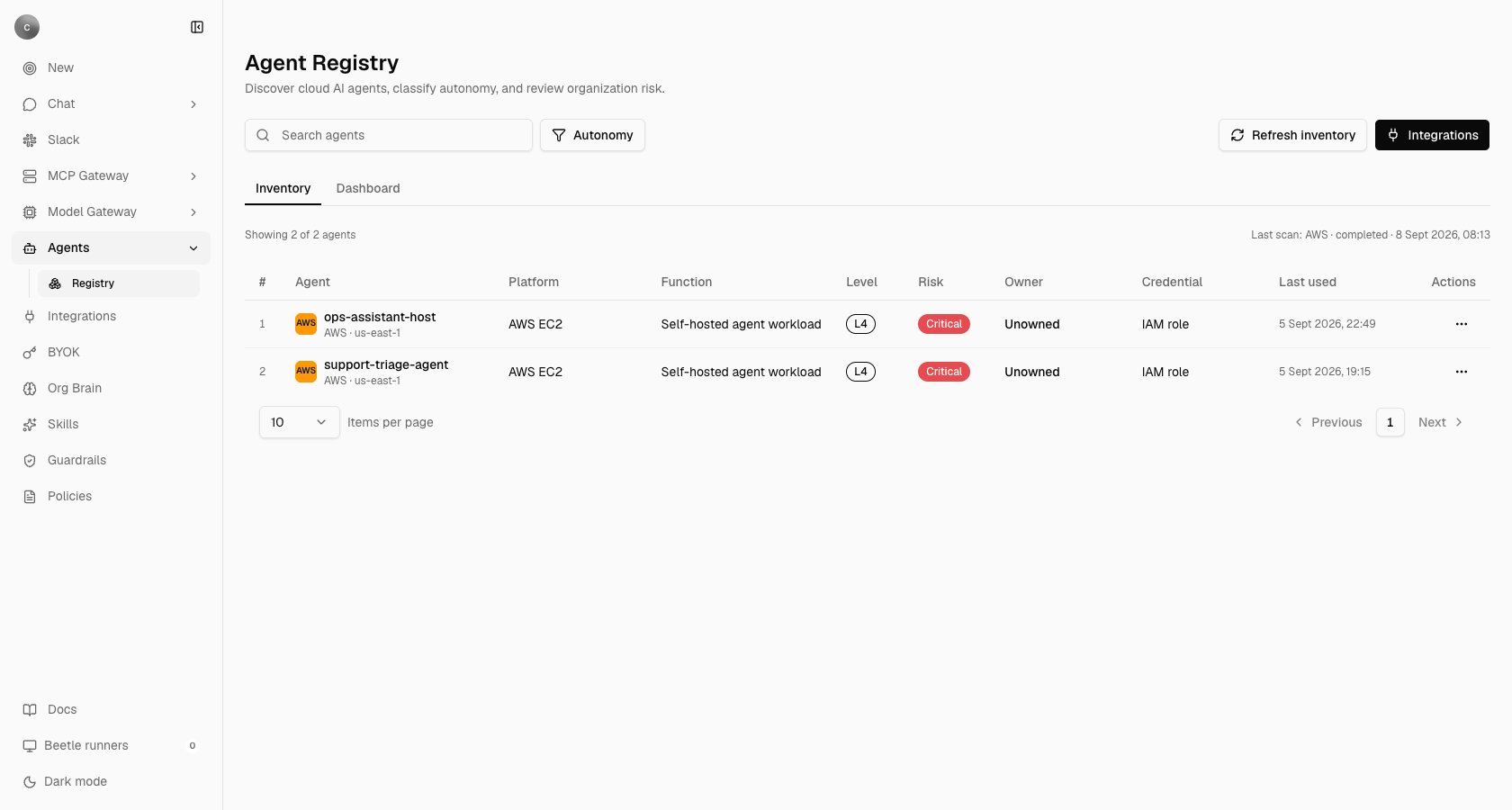
The Inventory tab after one AWS scan, captured wide enough to show every column. Both discovered EC2 workloads are classified L4 — the highest of the four autonomy levels, defined below — and Critical because no owner could be resolved, so Owner reads Unowned; Credential reads IAM role, Last used carries the timestamp the provider reported, and Actions is the row menu. The line above the table records the last scan.
AWS · us-east-1 underneath), Platform, Function, Level, Risk, Owner, Credential, Last used and Actions. Clicking an agent — or View details in its row menu — opens that agent’s register entry, the read-only detail dialog described below. Search agents matches name, resource id, platform, function, owner and region; the Autonomy button filters by level (L1 to L4, defined below); the table pages client-side at 10, 25, 50 or 100 rows. Above it, Showing 2 of 2 agents sits opposite Last scan: AWS · completed · 8 Sept 2026, 08:13, which reads “No scans yet” before the first scan and carries a warning triangle when the last one failed. Every timestamp on this page is rendered in UTC, with the date written the way your browser’s locale writes it.
An empty table reads “No agents discovered yet. Connect a cloud account and scan its inventory.”, or “No agents match this search and filter.” when a search or filter is active.
Connect a cloud account
Open Cloud integrations
Connect the provider
Let the first scan run
AWS connected. and an immediate scan: AWS scan completed: 4 agents found., or AWS scan completed: 0 agents found. Check the connected account's permissions and region if agents are deployed there. A connection that works but cannot read anything reports AWS connected, but inventory scanning needs attention: <error> — connecting and discovering are separate outcomes, and a failing scan never invalidates a good connection.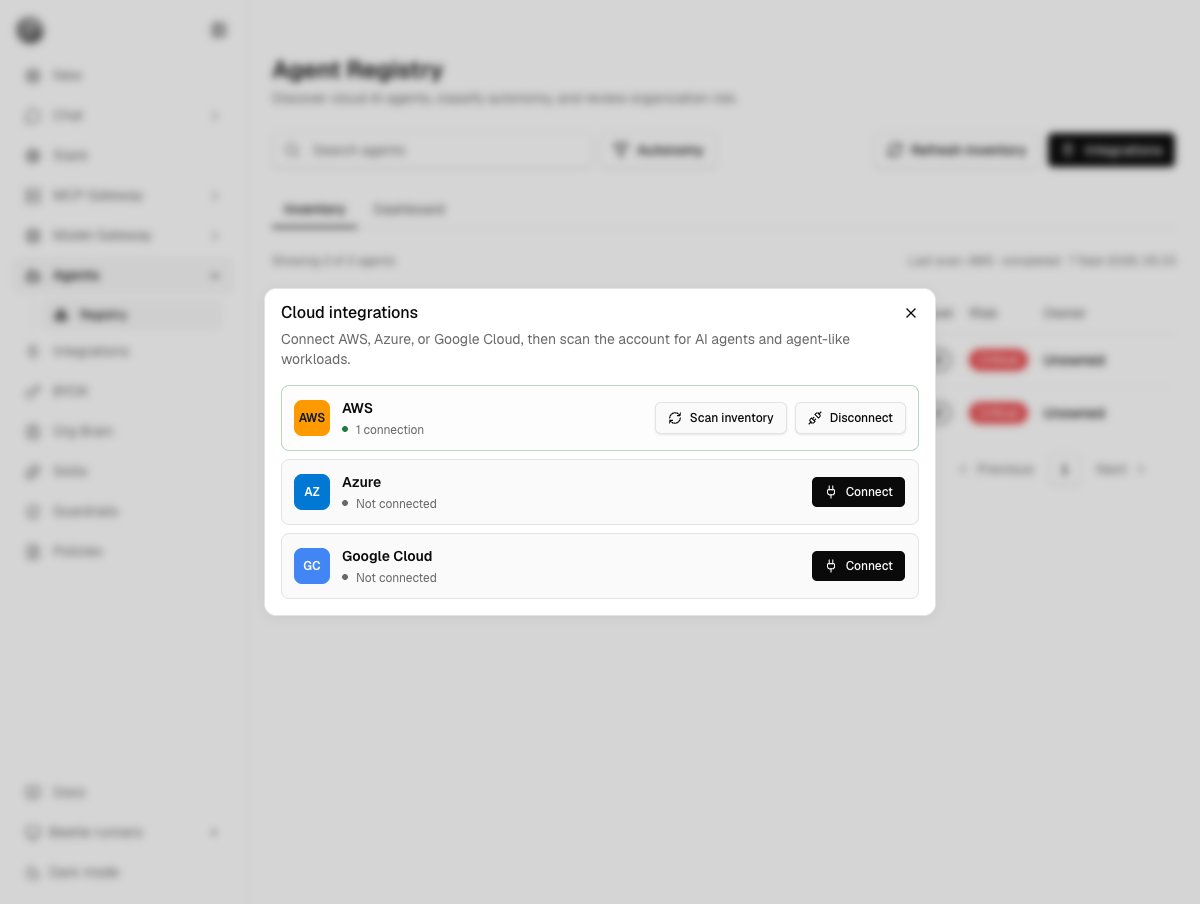
The Cloud integrations dialog with AWS connected. A connected provider offers Scan inventory and Disconnect; the others offer Connect. Every button here is disabled for members who are not an owner or admin.
agent-registry. Connecting AWS here never reuses, and is never reused by, the connection on Global Integrations, which hides agent-registry connections from its list — connecting a cloud there is a different act with a different purpose, publishing read tools to chat and MCP clients. See Receipt Connect for how a connection is stored and addressed, and connection scopes for where one lives.Permissions to grant
Everything the scanner calls is read-only. Grant less and the scan still runs — it just leaves columns blank, which looks identical to “nothing to report”.- AWS
- Azure
- Google Cloud
What a scan finds
Managed agent services are always listed. General compute is listed only when its name, description, labels or tags match a keyword signal —ai, agent, llm, genai, copilot, assistant, langchain, crewai, autogen, plus factory, receipt and beetle so Receipt’s own self-hosted runners are not missed; Beetle is the assistant’s name in the interface. That is a naming heuristic, with the consequences you would expect: an agent host called something else is missed, and an unrelated service with ai in its name is included.
Which fields are read varies by service. A Step Functions state machine is matched on its name alone; a Lambda on its name and description; EC2 instances, ECS services and every Azure resource on their name and tags; Google Cloud assets on name, description and labels.
Autonomy levels
The four levels are defined once and shown wherever a level appears: in the filter, as the tooltip on the row badge, and under the badge in the detail dialog.L4 Autonomous, L3 Approval, L2 Advise, L1 Observe — while the filter, badge and dialog use the names above.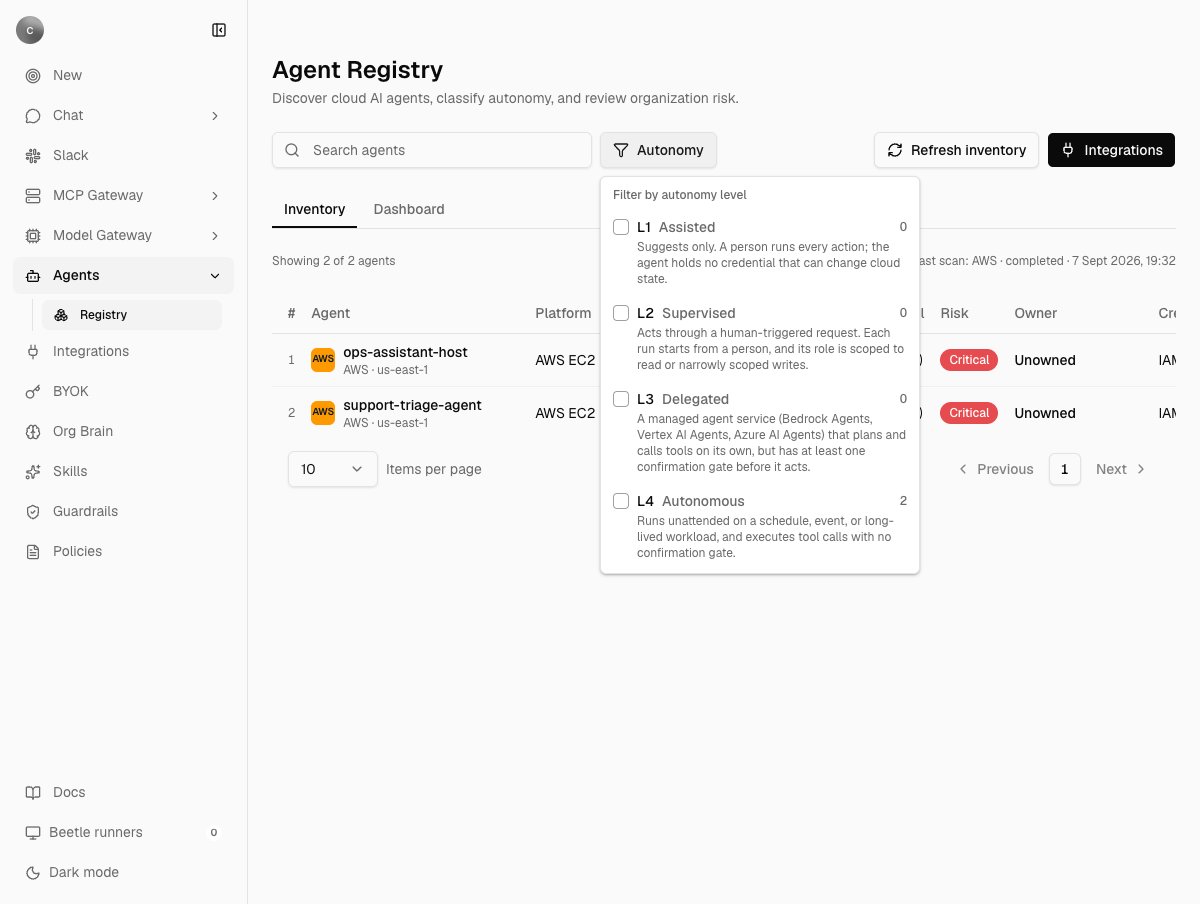
The Autonomy filter, open. Each level carries its criteria and a count, and the counts are taken before the filter is applied, so they keep showing what each level would return.
Risk, ownership and the register
Why an agent shows Unowned
Ownership is read from the cloud, first hit wins, and there is no way to assign an owner in Receipt.- A tag or label on the resource whose key is
owner,team,managed-by,created-by,contact,maintaineroraws:createdBy— the hyphens are optional. - The same keys on the resource’s execution role (AWS Lambda, Step Functions and EC2 only), its resource group (Azure) or its project (Google Cloud), so one tag on a shared role or project attributes a whole fleet.
- On AWS only, the CloudTrail creation event for the resource (
Create*,Run*,Register*), reporting the identity that made it.
cloudtrail:LookupEvents.
The register entry
The detail dialog holds Agent ID, Connection, Autonomy and risk with the level’s criteria, Owner, Credential, Purpose, Tools, Permissions, Data access, Description, Recommended action, and a Policy findings box. For AWS Bedrock Agents, Lambda functions, Step Functions and EC2 instances with an instance profile, the scan reads the execution role’s attached and inline IAM policies and fills all three technical fields: Tools lists the AWS services the role can reach, withAll AWS services (wildcard) first where a statement grants *; Permissions reads 12 allow statements across 3 policies. plus Grants a wildcard action (*) - least-privilege scoping is not in place. where that applies; Data access lists up to ten named S3, DynamoDB, RDS, Secrets Manager, Systems Manager, OpenSearch, Redshift or Glue resources, and adds At least one statement scopes to Resource: * - data access is not scoped to specific resources. where a statement does. A Bedrock Agent’s Purpose is its own instruction text.
Where a field cannot be filled, the row usually says why rather than showing a blank: AgentCore runtimes and ECS services report that the resource type’s execution role is not resolved yet, an EC2 instance with no instance profile reports that it holds no role permissions to report, and both other clouds are explicit — “Permissions and data-access introspection for Azure is not implemented yet (needs Azure RBAC role-assignment resolution per managed identity)”, and the equivalent line for Google Cloud. More permission will not fill those fields today.
The exception is a role the scan could not reach at all — an EC2 instance whose instance profile could not be resolved because iam:GetInstanceProfile is missing, for instance. There is no reason to report, so the three fields fall back to No tools reported., No permissions reported. and No resource-scoped data access reported., which reads the same as an agent that genuinely holds nothing. Check the iam:* grants before believing it.
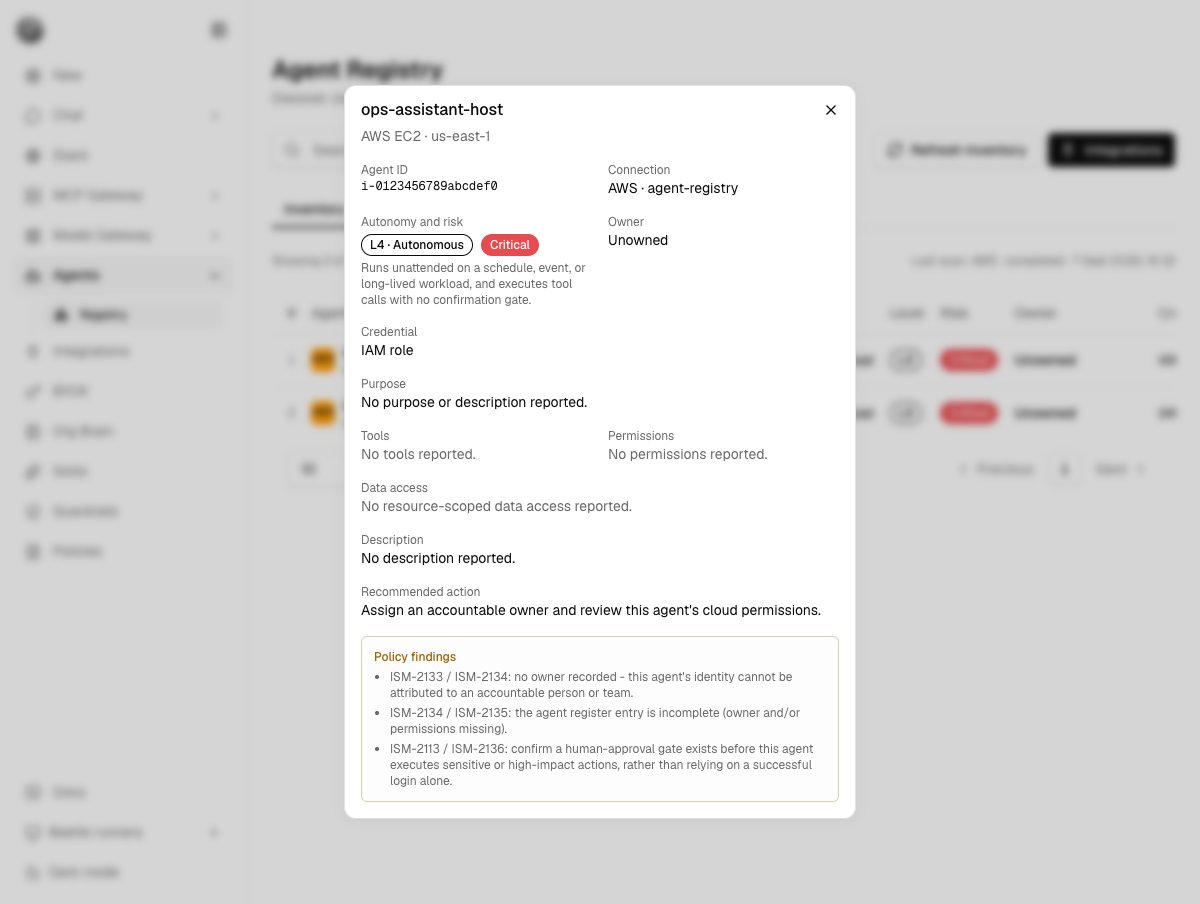
A detail dialog for a self-hosted agent host. Owner is Unowned, and Tools, Permissions and Data access are all empty because the instance's role was never reached; the Policy findings box lists the control references the classification triggered.
ISM-2133 / ISM-2134: no owner recorded - this agent's identity cannot be attributed to an accountable person or team. and ISM-2141 / ISM-2143: this role grants a wildcard action (*) rather than the minimum required scope. Recommended action is one sentence chosen by the same rules, such as Assign an accountable owner and review this agent's cloud permissions. Both are advice for a person; Receipt acts on neither.
The Dashboard tab
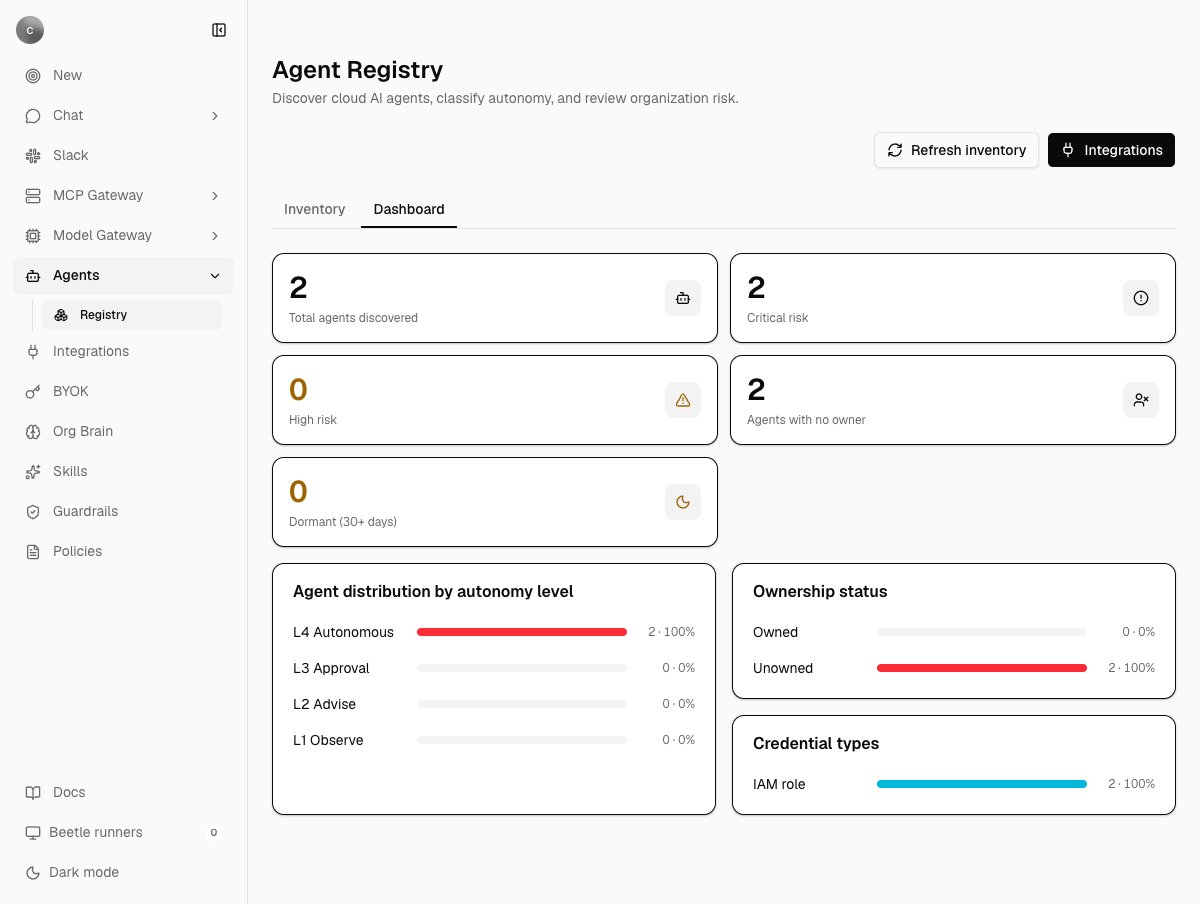
The Dashboard tab, computed from the whole inventory rather than the Inventory tab's current search and filter. Every bar shows a count and a share of the total. The autonomy bars read L4 Autonomous, L3 Approval, L2 Advise and L1 Observe, against the Assisted, Supervised, Delegated and Autonomous names in the Autonomy filter above — the same four levels under two vocabularies, as the note above records. The counts agree: 2 at L4, 0 at every other level.
2 · 100% or 0 · 0%. The credential label is a constant per provider rather than a per-agent observation: IAM role for AWS, OAuth token for Google Cloud, Service principal for Azure, and No instance profile for an EC2 instance without one. Before the first scan the tab reads “Connect a cloud account and scan it to build the executive risk dashboard.” There are no trends and no per-provider breakdown.
Scans, receipts and limits
A scan starts in one of three ways: automatically after a provider connects, from Scan inventory on a provider card, or from Refresh inventory in the page header, which scans every connected provider in turn and appears only for an owner or admin once at least one agent exists. Each scan appends receipts to one stream per organization:organization.agent_inventory.scan_requested, then either .scan_completed carrying the full agent list or .scan_failed carrying a one-line, truncated error rather than a raw provider response. The table you read is a projection rebuilt by replaying that stream, so the inventory is reproducible from its receipts; see receipts and audit. A completed scan replaces every agent belonging to that connection, a failed one keeps the last good inventory and records the failure beside it, and scan history keeps the most recent 30.
- Connections are scanned one at a time inside the request that started them. There is no overall time limit and no reaper for a scan whose process dies; that scan stays in a running state.
- Nothing prevents two admins from scanning at once.
- Each listing walks at most 20 pages per resource type per region, at most five action groups per Bedrock Agent, and shows at most ten named data-store resources per agent.
- Google Cloud and Azure requests time out after 30 seconds each.
- An AWS scan fails only when no supported service in any region could be read:
AWS inventory could not read any supported service.followed by the per-service reasons. Everything else degrades to a blank field.