

Before you start
- An account on the hosted app at
app.kentron.ai, or on your own deployment, signed in with an active organization. - The
receiptCLI installed — see Install the CLI. - Codex on your
PATHif you want the managed install.receipt mcp install codexshells out tocodex mcp addrather than editing the file itself, so it runs whatevercodexresolves to;--client-bin <path>points it at another binary. - At least one app already connected in the workspace you are configuring, which is the step you have just done in Connect an app. Connecting inside a workspace needs workspace owner or admin, so if nobody has connected one yet and you do not hold that role, ask someone who does before you start — the tool list in step 6 is empty until a connection exists.
Find the setup panel
Open MCP Gateway in the sidebar and click a workspace — pick Default, because that is the workspace a fresh CLI sign-in binds to. The sidebar entry lands you on the workspace list rather than on a panel; the panel headed Use connections with Receipt CLI and MCP clients sits at the top of every workspace’s Overview. Its body names the workspace you are configuring — “Receipt CLI and the local MCP bridge use a workspace-bound token. The selected workspace is Default; its connections and permissions are isolated from other workspaces in this organization.” — and the badge beside it reads Default workspace or Workspace scoped.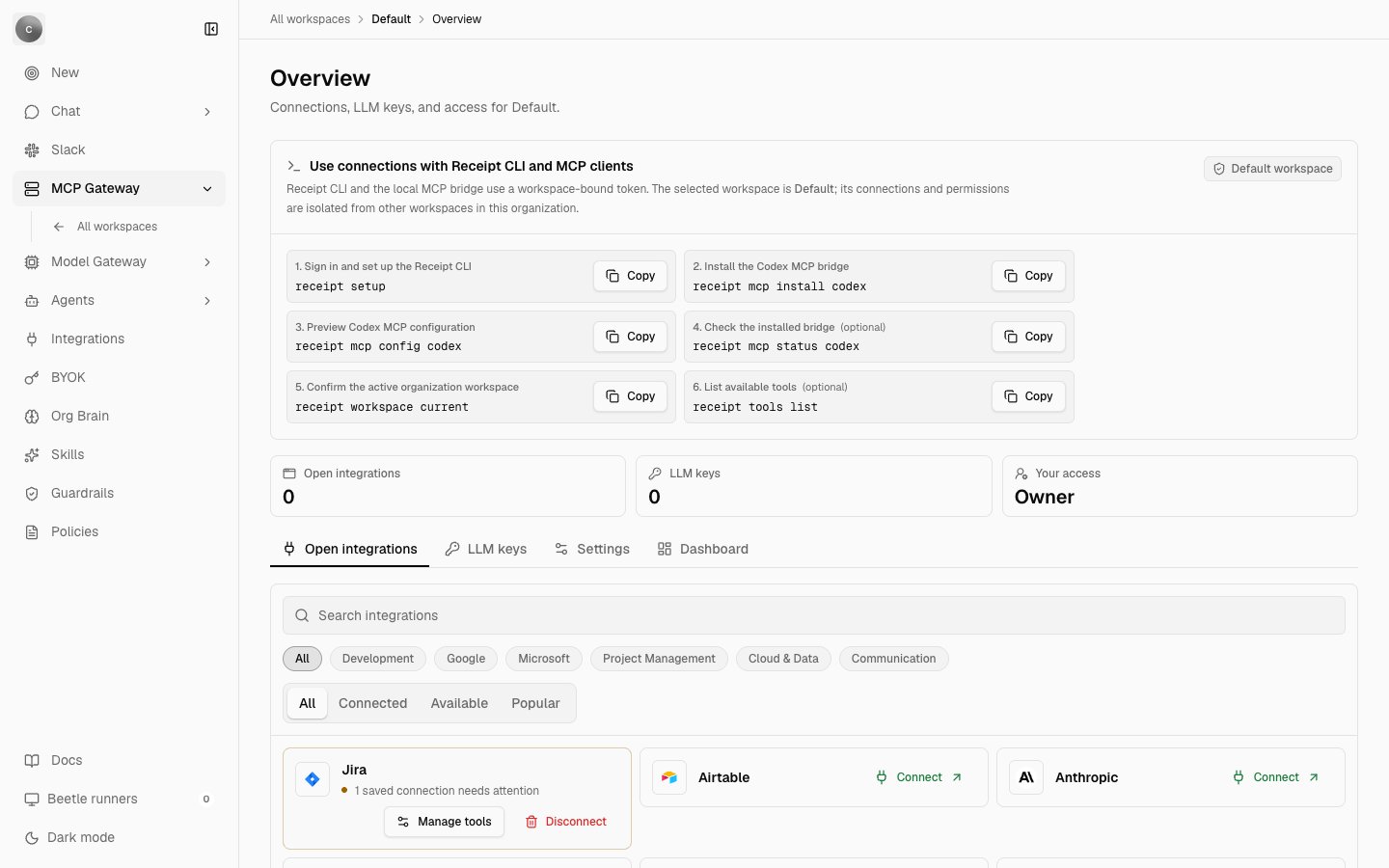
A workspace Overview. The setup panel carries the six numbered commands with a Copy button each, and marks steps 4 and 6 optional. Below it sit the Open integrations, LLM keys and Your access tiles, then the workspace tab strip and the Open integrations tab. The Open integrations tile reads 0 while the Jira card under it reports '1 saved connection needs attention' — the tile counts only providers whose connection is valid, and a connection that needs attention is not.
The six commands
Sign in — receipt setup
https://app.kentron.ai on its own. The CLI prints a code and opens your browser:Receipt sign-in approved., and then:- It is always bound to the organization’s Default workspace, whichever workspace you copied the command from. Switching is a separate command, below.
- Its token lasts 12 hours. When it expires, run
receipt setupagain; it detects the dead token and re-runs the login for you.
receipt mcp and receipt tools stop with receipt mcp: not signed in; run 'receipt setup' first, and receipt workspace with receipt workspace: not signed in; run 'receipt setup' first. Flags, session reuse and the device login in full are in Signing in with receipt setup.Install the Codex bridge — receipt mcp install codex
receipt in Codex’s own configuration — $CODEX_HOME/config.toml, by default ~/.codex/config.toml — by shelling out to codex mcp add. It backs the file up first, and if anything fails, including Codex not reporting the server afterwards, it restores the backup and tells you so. On success it prints a JSON result carrying ok, client, name, installed, removed, configPath, backupPath, workspace and remote.If you have installed before, it refuses with Codex MCP server 'receipt' is already installed; remove it first — run receipt mcp remove codex and install again. --dry-run prints the plan and changes nothing.Preview the configuration — receipt mcp config codex
install hands to codex mcp add, so you can read what Codex will run before or after installing it:receipt mcp serve) reads your saved session when it starts, and a guard refuses to generate or install any config that contains the session token or credential material.Check the installed bridge — receipt mcp status codex (optional)
codex mcp get receipt --json, and prints ok, client, name, installed, configPath, config, workspace and remote. installed: true means Codex knows about the server; the workspace block says which workspace the bridge will serve, and remote is the gateway URL it forwards to.Confirm the workspace — receipt workspace current
--json for an {ok, workspace} envelope.List the tools — receipt tools list (optional)
valid, and:- Connectors with a typed manifest publish exactly their manifest tools.
- Connectors that share Receipt’s generic proxy publish a single GET-only
read-provider-resourcetool. - Provider-native MCP connectors are excluded from the aggregate list. They stay reachable through
receipt tools list --connection <provider:name>. - Connectors that authenticate a local CLI instead of storing credentials in Nango —
awsandjira-api— publish nothing here. - Write tools appear only when your token carries
connect:write— the CLI sign-in token does — and the connection’s policy enables them, which a workspace owner or admin sets per connection in Manage tools. - A connection whose tool surface cannot be read is skipped with a warning rather than failing the whole listing.
tools array means nothing in the workspace publishes an aggregate tool: no connection at all, none in the valid state, or only provider-native MCP and local-CLI connectors. Check receipt workspace current, then connect an app in that workspace’s Open integrations tab — which needs workspace owner or admin.Point the client at another workspace
Sign-in binds the CLI to Default, and the setup panel does not list the command that changes it:list prints one row per workspace, with * marking the current one:
use accepts a workspace id, slug or name, matched case-insensitively, and prints the switched-to workspace on one line, <name> (<id>), with [Default] appended when it is the Default workspace. It is the one command that replaces your token: the gateway mints a new 12-hour token bound to the chosen workspace, carrying the same scopes, and the session file is rewritten with it. If the selector matches more than one workspace you get workspace '<x>' is ambiguous; use its id; if it matches none, workspace '<x>' was not found — which is also what a workspace you do not belong to gives you, because receipt workspace list returns only your own memberships and the gateway re-checks membership before it mints the token.
From then on receipt tools, receipt mcp and the bridge see that workspace’s connections and permissions, and nothing from any other. The full command surface is on Switching workspaces.
Restart the client after installing or switching
The bridge reads your saved session only when it starts. A running Codex keeps talking to whichever workspace the bridge loaded at launch, and never notices that the file changed. So:- After
receipt mcp install codex, restart Codex so it launches the bridge at all. - After every
receipt workspace use, restart the client and let it discover tools again.
Unknown or unavailable tool.
Other MCP clients
install, status and remove support Codex only. Any other client name is refused:
command and args into that client’s configuration by hand:
remote.url is informational — the client should run the local command, not connect to that URL. The same rules apply as for Codex: the config is token-free, the bridge reads the session at start, and you restart the client after switching workspaces.
connect:credential, which the CLI sign-in mints. This release ships no OAuth authorization server for it, so a client that can only attach to remote MCP servers over OAuth cannot connect; every supported path runs the local bridge.What you have now
Every call your client makes travels from the bridge to the aggregate server at/connect/mcp, where the workspace’s allowlists are checked and the provider is called with credentials the client never sees. The request flow is drawn on the overview and the protocol details are on The aggregate server.
One gap to know about: calls made through the MCP bridge are not yet recorded as receipts, so they do not appear on the workspace’s Gateway activity page. Calls made through /connect/call — which is what receipt tools call --connection <provider:name> uses — are. Gateway activity sets out exactly what is recorded.
The commands used on this page have their own reference pages: Calling tools and wiring MCP clients for receipt tools and receipt mcp, and Connecting providers from the CLI for receipt connect status, list and call. If a step failed with a message not covered here, Troubleshooting lists the gateway and CLI errors with their causes and fixes.
Next step: organize connections into workspaces.