

Manage organization members, pending invitations, permissions, and access status.
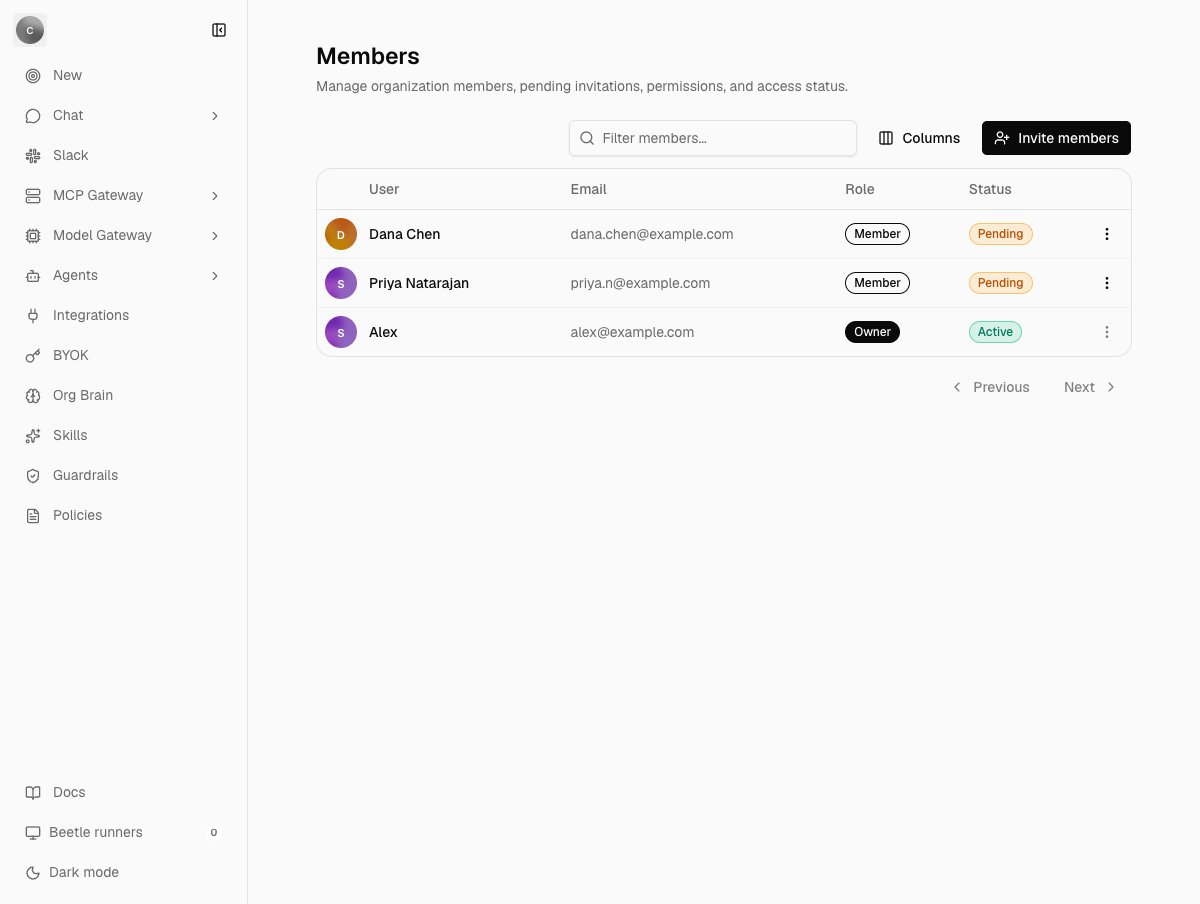
Organization settings → Members. The two invitations that have not been accepted sit at the top of the first page with an amber Pending badge and the Member role; Alex, who created the organization, follows with Active and Owner. The three-dot menu at the end of a row holds Change role and Remove member on an active member, and only Cancel invitation on a pending one.
The three roles
Receipt uses the default role set from its authentication layer. There are exactly three roles and no custom ones.
Whoever creates an organization becomes its owner.
Owner and admin are not distinguished by Receipt’s own admin check: every place Receipt asks “is this person an admin?” — guardrails, organization skills, policies, organization knowledge, the Agent Registry, the Slack and Teams installs, Stripe checkout and workspace mutations — accepts both identically. The one permission that separates them is deleting the organization, and no screen in the app offers it.
Who can open organization settings
This is the rule that surprises people. Every page under organization settings is owner and admin only, with one exception: the MCP Gateway and Workspaces paths, which are open to any organization member. So a plain member can open Workspaces and the MCP Gateway, and cannot open Members, Billing, Usage, BYOK, Security, Policies or the rest. The route gate is not the only check. Each feature enforces its own authorization on the server independently, with its own refusal, such asOnly organization owners or admins can manage guardrails. or Only organization owners or admins can manage policies. Access control adds the second boundary these roles sit beside — the workspace role that decides who may rewire a Receipt workspace — and the two Guard surfaces that are not enforced at all.
The Members page
The table has the columns User, Email, Role and Status, plus a row action menu. Above it sit a filter box with the placeholderFilter members..., a Columns menu that shows and hides columns, and the Invite members button. The loading state reads Loading members and invitations... and the empty state No members or pending invitations found.
The table pages 50 rows at a time with Previous and Next. Pending invitations are merged into the first page ahead of active members and de-duplicated against active member addresses, so an invited address does not appear twice. Active members follow in role order — owner, then admin, then member — and alphabetically by name within each.
Status is one of three badges:
Row actions depend on the row. An active member offers Change role (an Admin / Member submenu) and Remove member; a pending invitation offers only Cancel invitation. Your own row’s menu is disabled — you cannot change or remove yourself from this table. The actions toast
Role updated., Member removed. and Invitation cancelled., or the matching Failed to … message, and the row updates in place before the server confirms.
Inviting people
Invite members opens the Invite member dialog, described asSend an invitation to join this organization. Each row has an Email address field with the placeholder colleague@example.com and a role select offering Member (the default) or Admin. Add another adds a row, up to ten addresses per batch, and Send invitation submits them.
Receipt sends the batch as one API call per address, in sequence, so a batch can partly succeed. The outcomes you can see:
Invitation sent.or{n} invitations sent.{n} invited; {m} failed.followed by the first failure, itself prefixed with the address that failed; when every address fails, that first failure is shown on its ownEnter at least one email address.when every row is blank
What the invitee gets
The invitation email’s subject is:
You're invited to join {organizationName}
It carries an Accept invitation button pointing at /auth/accept-invitation/<invitationId>, under labels reading Inviter and Workspace — the workspace name when the invitation targets one, the organization name otherwise. Invitations expire after 48 hours.
When no invitation email is sent
Delivery is a deployment setting, not a product feature:AUTH_EMAIL_PROVIDER selects the transport (Amazon SES, Resend or SMTP). When it is unset, Receipt infers one from the sender variables that are present and otherwise resolves to disabled, and no authentication email leaves the deployment at all. The invitation is still real — the row shows Pending, and the link still works — but nobody is told about it, and the dialog still reports Invitation sent., because the delivery failure is logged on the server rather than returned to the browser. “It just says Pending forever” is almost always this. Configuration lists the variables each transport needs.
The Invite member dialog offers a copyable link only on a self-hosted deployment; a cloud deployment with no transport configured shows no link panel here. Workspace sharing, below, handles the same situation differently — it detects that no email can be sent and offers the link on every deployment.
On a self-hosted deployment the dialog reports
Invitation created. Copy the signup link below. (or {n} invitations created. Copy the signup links below.) and shows a panel reading Copy these signup links and share them directly with teammates. with one /auth/sign-up?invitationId=<id> link per invitee. A self-hosted deployment that does have a transport configured sends the invitation email as well and keeps the link as a fallback.Accepting
A signed-out invitee opening the link is sent to sign-up with the invitation attached. Receipt looks up the invited address and pre-fills the email field and makes it read-only, with the hintThis invitation is tied to this email address. Trying to continue with a different address gives:
Use the email address that received the invitation to continue.
A signed-in invitee instead sees a card titled Organization invitation — Review this invitation before joining the organization in Receipt. — showing who invited them, with Join organization and Decline. On success it reads Welcome aboard! and You have successfully joined the organization. Redirecting to your workspace…, then waits three seconds before moving on. Failures surface as Invalid invitation, Failed to load invitation, Failed to accept invitation or Failed to reject invitation.
On the hosted app you must have verified your own email address before you can accept or decline an invitation. Self-hosted deployments, and cloud builds that set VITE_DISABLE_EMAIL_VERIFICATION_OTP=1, do not apply that requirement.
Seats
An organization’s seat count comes from its plan entitlement, covered in Billing and plans. A free organization’s ceiling is whateverRECEIPT_DEFAULT_FREE_SEAT_COUNT is set to on the deployment, and five when it is unset or not a positive integer. A paid subscription’s own seat count replaces it. Self-hosted deployments are different again: each organization is created on the self_hosted plan with 100,000 seats, so the ceiling is not one you meet.
Capacity is checked when you invite: Receipt counts active members, plus pending invitations, plus the new invites against the seat count. Pending invitations occupy seats even though nobody has accepted them, and so does a workspace share that falls back to an organization invitation. The workspace-only invitation below is not counted: the person it goes to already holds a seat.
An invite that would overflow fails with HTTP 403 and this message, surfaced per address in the invite dialog:
Only {n} users can access this workspace.
An organization that is over its limit is flagged on its entitlement, and the overflow is drawn on the Billing page’s seat bar; choosing fewer seats than you have active members warns you there before you confirm. Billing and plans covers both.
Sharing a single workspace
Sharing one Receipt workspace from a workspace’s Settings tab is a different mechanism from an organization invitation, and it takes one of two paths depending on who you name. The Share workspace section describes itself asGive someone in your organization access to this workspace., and the dialog is titled Share workspace — Send an invitation to your workspace. — with a teammate@company.com placeholder and up to five addresses at once.
- Already an organization member. Receipt issues a workspace-only invitation: a signed
wsinv_token with a 48-hour lifetime, delivered as an/auth/accept-invitation/<token>link. Access to every workspace the person already belongs to is preserved. - Not yet in the organization. Receipt falls back to an organization invitation that carries the workspace as its target, so accepting joins the organization and grants the workspace in one step. That path consumes a seat like any other invitation.
- Already in this workspace. The address is rejected inline with
{email}: already has access to this workspace.
Invitation email sent. Workspace access is granted after acceptance.; when it does not, the dialog says so instead of implying delivery — Invitation created. Copy the link below., with a panel reading No invitation email was sent — this instance has no mail transport configured. Copy and send this invitation link to the invited person. and a copy button that toasts Invitation link copied.
Until it is accepted, the invitation appears in that workspace’s member list with a Pending badge, whichever of the two paths created it. A workspace owner or admin gets Cancel invitation in the row menu, which toasts Invitation to {email} cancelled. Accepted rows carry Remove from workspace instead, disabled on your own row (You cannot remove your own access.) and on the Default workspace (Default membership follows the organization.). Workspaces covers the rest of that page.
Next step: see what your organization’s plan and seats cost.