

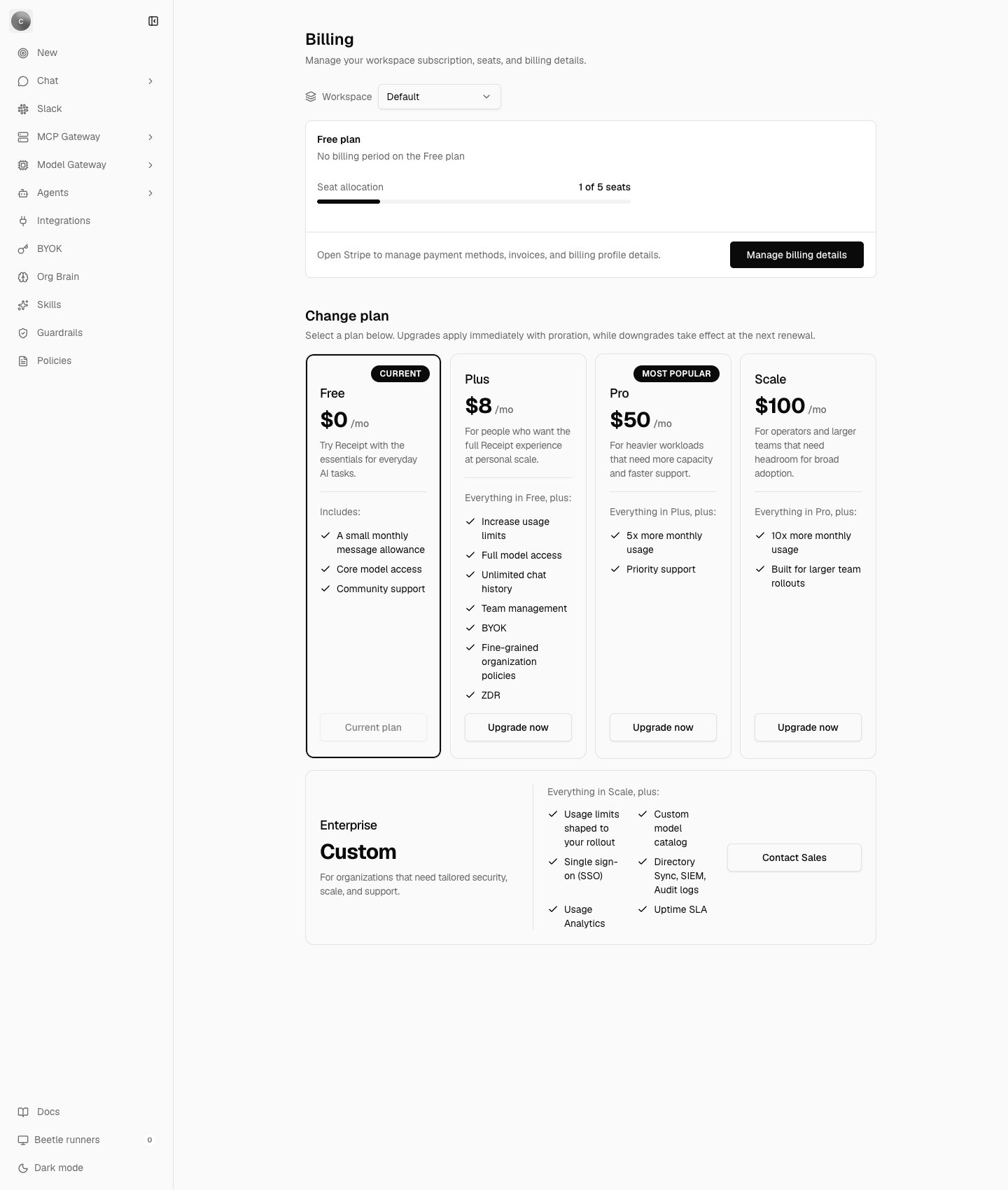
The Billing page on a Free organization. The summary card reads Free plan over No billing period on the Free plan, with a Seat allocation bar at 1 of 5 seats and the Stripe portal row under it. Under Change plan sit the four self-serve cards, each with its own monthly price and its full inclusion list, Free badged Current and Pro badged Most Popular, and the Enterprise band below them priced Custom with its own list and a Contact Sales button. Notice the left rail: it has no Usage or Billing icon.
Where Billing lives
/organization/settings/billing is titled Billing and described as Manage your workspace subscription, seats, and billing details.
The organization settings navigation declares Usage and Billing as a pair of utility destinations rather than part of the main feature sequence. The sidebar renders only that main sequence, so in this release neither icon is drawn — the capture above shows the rail without them. You reach Billing by typing its URL, or from the Upgrade button on the Usage page.
The page is owner and admin only. A member who types the URL is sent back to the app root — there is no access-denied screen, only Checking workspace access while the role resolves.
Billing says “workspace” where the rest of Receipt says organization: the subscription, the seats and the credit balance all belong to the organization you are signed in to. The Workspace strip at the top of the page is a different thing — the active-workspace indicator that every organization settings page carries, doubling as a switcher once you have more than one Receipt workspace. Changing it does not change what Billing reads.
The plans
Six plan identifiers exist —free, plus, pro, scale, enterprise and self_hosted — shown as Free, Plus, Pro, Scale, Enterprise and Self-Hosted.
Only Plus, Pro and Scale are checkout-managed, and each resolves its price from its own environment variable (STRIPE_PRICE_PLUS_MONTHLY, STRIPE_PRICE_PRO_MONTHLY, STRIPE_PRICE_SCALE_MONTHLY). An unset one makes the plan change fail on the server with Missing required environment variable <KEY>. self_hosted is only a valid plan identifier on a self-hosted instance.
Free, Plus, Pro and Scale render as the four cards under Change plan, with a Most Popular badge on Pro and a Current badge on the plan you are on. Enterprise renders as a band underneath them, carrying its own feature list and a Contact Sales button.
The Contact Sales button on the Enterprise band has no destination wired in this release — its link target is
#. Arrange Enterprise through your usual channel instead.Read prices and included-seat numbers from the product, not from a table here. The code carries two plan catalogs — one drives the cards you see, the other drives entitlement resolution — and the seat numbers in them describe nothing that is enforced: the entitlement catalog records a single included seat on every cloud plan, while the enforced free-plan ceiling defaults to five.
Seats
The summary card is headed{planName} plan, over the billing period — or No billing period on the Free plan, since Free has no subscription behind it. Under that sits the Seat allocation bar, labelled {activeMembers} of {seatCount} seats.
When active members exceed the seat count, the bar splits: a filled segment for the members a seat covers, and a second, red segment for the overflow. It carries no label of its own. The message catalogue holds three over-seat strings — Over seat limit, No paid seat assigned and This member is outside the workspace's paid seat capacity. Upgrade seats or remove members to restore paid usage. — and nothing reads them, so none of the three appears in the product.
A new cloud organization starts on Free with a seat ceiling of RECEIPT_DEFAULT_FREE_SEAT_COUNT — any positive integer, defaulting to 5. It is a deploy-time setting, so a pilot deployment can raise it without a code change; see Configuration. A self-hosted build never reads it: its organizations are provisioned with 100,000 seats, which is the same thing as no limit.
You do not pick a seat count on the page itself. It is chosen inside the plan-change dialog, under Seat count — Enter the number of seats you want this plan to include. Choose fewer seats than you have active members and the dialog warns:
You selectedSeat count is the first of the three things a plan still changes, and the place it bites is invitations. See Members and roles for the invite flow and the refusal it produces.{selectedSeats}seats for{activeMembers}active members. Everyone keeps access until period end, and extra members will be auto-restricted after renewal.
Changing a plan
Change plan states the semantics exactly:Select a plan below. Upgrades apply immediately with proration, while downgrades take effect at the next renewal.Each card’s button reflects where that plan sits relative to yours: Upgrade now to start or move up, Schedule downgrade to move down, Manage seats on the paid plan you are already on, and Scheduled — inert — on a plan you have queued. On Free, the Free card reads Current plan and does nothing. The dialog that opens is titled
Start {planName}, Schedule {planName}, Switch to {planName} or Update {planName}. It shows the seat input, a Price per seat row and a New monthly total row, both formatted {price}/month, and one timing line — This change applies immediately. Any required proration will be handled automatically. for an immediate change, or This downgrade will take effect on {effectiveDate}. Your current access stays active until then. for a scheduled one. You confirm with Continue to checkout, Confirm downgrade or Confirm change. A failure reports Subscription change could not be completed.
Once a change is queued, a banner on the summary card says so: Scheduled change to {planName} with {seatCount} seats on {effectiveDate}. or, for a cancellation, Scheduled cancellation to Free at period end on {effectiveDate}.
Manage billing details — Open Stripe to manage payment methods, invoices, and billing profile details. — sends you to the payment portal, and your subscription is reconciled once when you return to the app.
Cancel to Free appears only while you are on a paid plan: Keep your current paid plan until the end of the billing period, then move the workspace to Free. The button is Cancel to Free at period end, and the confirmation is titled Cancel subscription — Confirm that you want to keep your current paid plan until period end and then move this workspace to Free. — confirmed with Confirm cancellation. Once scheduled, the section restates the date and the button reads Cancellation scheduled.
Who can change it
Owners and admins, and they are treated identically. When the session reports any other role, the plan controls are disabled behind a notice:Only workspace owners and admins can change plans, seats, or billing details.You will rarely meet that notice here, because the settings guard sends a member back to the app root before the page renders. The interface treats your role as a hint rather than the boundary: while the active role is still unresolved the controls stay enabled, and the server is what refuses the write. A plan change, a cancellation or a portal hand-off from someone who is not an owner or admin fails with
Only workspace owners or admins can manage billing. The access rule that keeps members off the page in the first place is the same one that governs the rest of organization settings — see Members and roles.
On a self-hosted deployment
The whole page is replaced. It readsThis workspace is running in self-hosted mode. over the single line Stripe checkout, pricing upgrades, and the billing portal are disabled for self-hosted deployments. There is no plan to choose and no portal to open, and /pricing says the same thing under the heading Self-hosted instance.
A self-hosted organization is provisioned on the self_hosted plan, receives no signup credit, and has usage metering switched off entirely. See Self-hosting.
What a plan actually changes today
Three things differ, and they are the three to reason about.Seat count — enforced on invitations
Seat count — enforced on invitations
The check counts active members, plus pending invitations, plus the new invite, against the seat count — the subscription’s own seat count where there is one, otherwise
RECEIPT_DEFAULT_FREE_SEAT_COUNT. On overflow the invitation fails with HTTP 403 and the message Only {n} users can access this workspace. (singular “user” when the limit is one). The invite dialog shows this per address.Every membership and invitation change recomputes the organization’s entitlement snapshot, and an organization past its seat count is flagged as over the limit.The metered usage budget
The metered usage budget
Paid plans carry a usage policy: spend is pre-authorized per turn against a per-seat budget for the billing cycle. Free has no usage policy at all — the policy templates are defined for the paid plans only — so a Free organization’s model calls run against the platform credit balance instead. Self-hosted disables the policy.
The one-time signup credit
The one-time signup credit
A hosted organization is created with a $5 platform credit, recorded as a
signup_grant ledger entry against the organization’s owner. A partial unique index on that entry makes it a one-time benefit per user, so creating a second organization does not grant it again. When it runs out, chat reports:Your $5 platform credit has been used. Add an optional provider key in Billing & Credits to continue without platform credit.That message names a page that does not exist under that name — the page is Billing, and the key it wants is the one on the BYOK page, described in Bring your own key.
VITE_DISABLE_REDIS=true. Both, and every plan-gated string that cannot fire, are catalogued in Errors and limits.
Next step: see how the platform is put together.