> ## Documentation Index
> Fetch the complete documentation index at: https://docs.kentron.ai/llms.txt
> Use this file to discover all available pages before exploring further.
# Connect an app
> Connect a third-party account once for the whole organization, or inside one workspace for the CLI and MCP clients, and understand which surfaces read each.
Before Receipt can act on a connected app on your behalf, someone has to connect it. There are two places to do that, and they are not interchangeable: **Global Integrations** serves chat and Slack, and a workspace's **Open integrations** tab serves the CLI and MCP clients. The catalog, the cards and the connect dialog are the same on both; only the audience that can use the connection differs.
Connecting on Global Integrations requires organization owner or admin. Inside a workspace, any member of that workspace can open the page, but connecting, disconnecting and changing a connection's tools need workspace owner or admin — authority an organization owner or admin also has in any workspace they are a member of, and every organization owner and admin is added as a member when a workspace is created.
## Two places to connect
| Where | Who reads it | Who can connect |
| ------------------------------------------------------------------------- | ------------------------------------------------------------------------------------------------------------------------------------------------------------ | --------------------------- |
| Organization Settings > **Integrations** (titled **Global Integrations**) | Web chat and background runs started from chat; the Slack app | Organization owner or admin |
| MCP Gateway > a workspace > **Open integrations** | The Receipt CLI and any MCP client bound to that workspace; the sandboxed workers that run a [background task](/co-worker/background-runs) in that workspace | Workspace owner or admin |
The Teams app is the exception: it reads the organization's **Default** workspace, not Global Integrations. See [Connection scopes](/mcp-gateway/connection-scopes) for the full map.
The practical consequence: connecting GitHub on Global Integrations makes it available to chat and Slack, but `receipt tools list` will not show it until GitHub is also connected inside the workspace the CLI is bound to. Sign-in binds the CLI to **Default**; [`receipt workspace use`](/cli/workspaces) moves it.
## The Global Integrations page
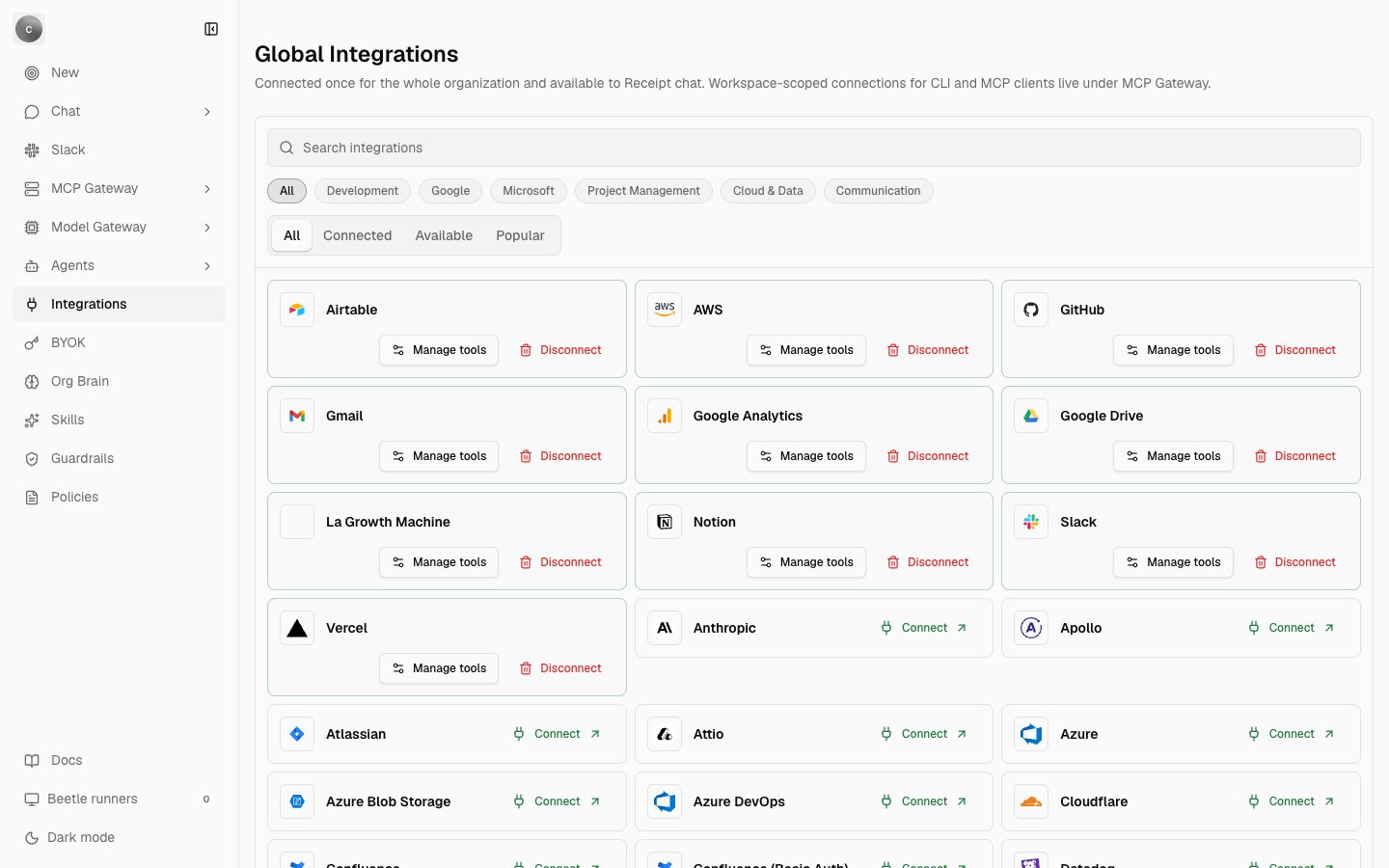
The page is titled **Global Integrations**, and its own description explains the scope: connected once for the whole organization and available to Receipt chat. Workspace-scoped connections for CLI and MCP clients live under MCP Gateway instead.
On the page you'll find a **Search integrations** box, vendor chips for the categories in the catalog (**All**, **Development**, **Google**, **Microsoft**, **Project Management**, **Cloud & Data**, **Communication**), a segmented control for **All**, **Connected**, **Available**, and **Popular**, and cards loaded 60 at a time behind a **Load more** button that reports how many remain. **Connected** keeps only apps with a connection; **Available** keeps only apps you can connect. If nothing matches, the page says **No integrations found**.
The catalog holds 63 connectable apps inside a browsable directory of about 900 entries. A card reads **Coming soon** when the app is in the directory but cannot be connected from Receipt yet.
Each card tells you its state:
| What the card shows | What it means |
| -------------------------------------------------------------------------------- | ------------------------------------------------------------------ |
| **Connect** (reads **Opening** while Receipt requests the authorization session) | Connectable, not connected |
| **Manage tools** and **Disconnect** | Connected; one pair per connection made through the connect dialog |
| ` connections` | More than one connection to the same app |
| `1 saved connection needs attention` / ` saved connections need attention` | A connection exists but is no longer valid; reconnect it |
| **Coming soon** | In the directory, not connectable |
**Manage tools** opens the per-connection allowlist. Write operations are off until an owner or admin enables them per connection; there is no per-action approval prompt in this release. That dialog has its own page: [Tools and permissions](/mcp-gateway/tools-and-permissions).
## Connecting
The button reads **Opening** while Receipt asks the integration provider for an authorization session, then a dialog titled `Connect ` appears. Its description names the boundary you are about to cross, and it depends on where you started: at the organization level it connects the app "to this organization's Global Integrations. Other organizations you belong to are not affected."; from a workspace it connects the app "only to the `` workspace."
The provider's own authorization interface renders inside that dialog. Receipt never builds the provider's authorize URL, and what you enter goes to the integration provider that holds the credentials, not into Receipt's own tables.
On success a toast reads ` connected.` Receipt also polls connection state in the background for up to two minutes afterward, every five seconds, so the card still flips to connected even if the provider's webhook notification is slow to arrive.
If a connection for that provider already exists, connecting again reconnects it rather than creating a second, separate connection.
The catalog reloads when you return to the tab, so if the integration provider was briefly unavailable while the authorization window was open, you do not need to refresh the whole page.
### What is stored
The credentials you enter go to Nango, the integration provider Receipt runs beside itself. Receipt keeps an encrypted reference to the Nango connection — ciphertext plus the organization, the scope it was connected in, the provider, the connection name and who created it. Provider credentials stay in Nango: the browser is served only the non-secret columns, and MCP client configs and sandboxes never contain them. [Receipt Connect connections](/mcp-gateway/receipt-connect) sets out the four connection kinds, including the two imports that do hold a credential.
The connect dialog has no name field, so every connection made from the web UI is named `default`, and the disconnect dialog reads `/default`. The dialog interpolates whatever name a connection carries, so one created through the API with a custom name shows that name instead.
## Connecting inside a workspace
Open **MCP Gateway**, pick a workspace, and you land on its **Overview**, described as "Connections, LLM keys, and access for ``." Three summary tiles — **Open integrations**, **LLM keys** and **Your access** — link to the three tabs below them: **Open integrations**, **LLM keys** and **Settings**. A fourth entry, **Dashboard**, sits alongside them and leads to the workspace's [Gateway activity](/mcp-gateway/gateway-activity). The **Open integrations** tile counts the distinct providers with a valid connection in this workspace; it never counts Global Integrations.
The **Open integrations** tab embeds the same catalog inside the Overview page, so it has no heading of its own. Everything described above works the same way there, except that every connection belongs only to that workspace. If no workspace is selected, a warning sits above the cards: `Select an available workspace before managing integrations. No organization-wide connections are shown as a fallback.`
Which workspace to connect in is the workspace your client is bound to: check with `receipt workspace current`, then run `receipt tools list` to see the new tools. The gateway advertises `listChanged: false`, so it never tells an MCP client that the tool list has changed; a client that already listed tools has to list them again. The [quickstart](/mcp-gateway/quickstart) walks through the sequence.
## Disconnecting
**Disconnect** on a card opens a dialog titled **Disconnect integration?** that asks `Disconnect /? Receipt will revoke the provider connection and new agent tasks will immediately lose access to it.` and warns that "Existing receipts remain available for audit. This action removes only the selected named connection." The button reads **Disconnect**, then **Disconnecting** while the provider side is revoked.
## Cloud accounts connected in the Agent Registry
AWS, Azure and Google Cloud accounts connected from the [Agent Registry](/catalog/agent-registry) do not appear on either integrations page. The registry uses its own connection, named `agent-registry`, so that the credential it scans with is never reused as the organization's general provider connection, and the reverse holds too: connecting AWS on Global Integrations does not make the account scannable. To let the registry scan an account, use the **Integrations** button on the Agent Registry page, which opens its **Cloud integrations** dialog.
## Custom OAuth apps and the callback URL
Most OAuth providers work out of the box. If a provider's OAuth application was registered by the operator of your deployment with its own client credentials, that application must list Receipt's callback URL, otherwise the provider rejects the authorization before Receipt is involved. Linear, for example, answers:
```text theme={null}
The redirect URI provided does not match any registered URI for this client.
```
That message comes from Linear, not from Receipt or Nango: the client id was accepted, but the redirect Nango sent is not on the application's callback list. The URL to register is your public Receipt origin followed by `/oauth/callback`:
```text theme={null}
https:///oauth/callback
```
Register it exactly: `https`, no port, no trailing slash. That is the address unless your deployment has customized the integration provider's own callback. The same rule applies to every OAuth provider on that deployment that uses custom rather than Nango-default credentials. No redeploy is needed; the provider validates the redirect at authorization time, so **Connect** works as soon as the application is saved. On the hosted app the deployment operator manages these registrations; on a self-hosted deployment, see [Integrations provider](/core/integrations-provider).
## Errors you might see
* **No connection yet**: `No active
 ## The Global Integrations page
The page is titled **Global Integrations**, and its own description explains the scope: connected once for the whole organization and available to Receipt chat. Workspace-scoped connections for CLI and MCP clients live under MCP Gateway instead.
On the page you'll find a **Search integrations** box, vendor chips for the categories in the catalog (**All**, **Development**, **Google**, **Microsoft**, **Project Management**, **Cloud & Data**, **Communication**), a segmented control for **All**, **Connected**, **Available**, and **Popular**, and cards loaded 60 at a time behind a **Load more** button that reports how many remain. **Connected** keeps only apps with a connection; **Available** keeps only apps you can connect. If nothing matches, the page says **No integrations found**.
The catalog holds 63 connectable apps inside a browsable directory of about 900 entries. A card reads **Coming soon** when the app is in the directory but cannot be connected from Receipt yet.
Each card tells you its state:
| What the card shows | What it means |
| -------------------------------------------------------------------------------- | ------------------------------------------------------------------ |
| **Connect** (reads **Opening** while Receipt requests the authorization session) | Connectable, not connected |
| **Manage tools** and **Disconnect** | Connected; one pair per connection made through the connect dialog |
| `
## The Global Integrations page
The page is titled **Global Integrations**, and its own description explains the scope: connected once for the whole organization and available to Receipt chat. Workspace-scoped connections for CLI and MCP clients live under MCP Gateway instead.
On the page you'll find a **Search integrations** box, vendor chips for the categories in the catalog (**All**, **Development**, **Google**, **Microsoft**, **Project Management**, **Cloud & Data**, **Communication**), a segmented control for **All**, **Connected**, **Available**, and **Popular**, and cards loaded 60 at a time behind a **Load more** button that reports how many remain. **Connected** keeps only apps with a connection; **Available** keeps only apps you can connect. If nothing matches, the page says **No integrations found**.
The catalog holds 63 connectable apps inside a browsable directory of about 900 entries. A card reads **Coming soon** when the app is in the directory but cannot be connected from Receipt yet.
Each card tells you its state:
| What the card shows | What it means |
| -------------------------------------------------------------------------------- | ------------------------------------------------------------------ |
| **Connect** (reads **Opening** while Receipt requests the authorization session) | Connectable, not connected |
| **Manage tools** and **Disconnect** | Connected; one pair per connection made through the connect dialog |
| `