> ## Documentation Index
> Fetch the complete documentation index at: https://docs.kentron.ai/llms.txt
> Use this file to discover all available pages before exploring further.
# Using skills in chat
> Pick an organization skill from the composer, or ask Receipt to draft and save a new one without leaving the conversation.
Organization skills are reusable instructions, one `SKILL.md` file each, that your organization publishes for agents to follow during background runs. From the chat composer you can do two things with them: pick one so the run you are about to start knows which instructions you mean, and ask Receipt to draft a brand-new skill and save it, without opening the Skills page. Uploading, versioning, enabling and deleting skills is covered in [Skills](/catalog/skills); the file format is in [Writing a skill](/catalog/writing-a-skill).
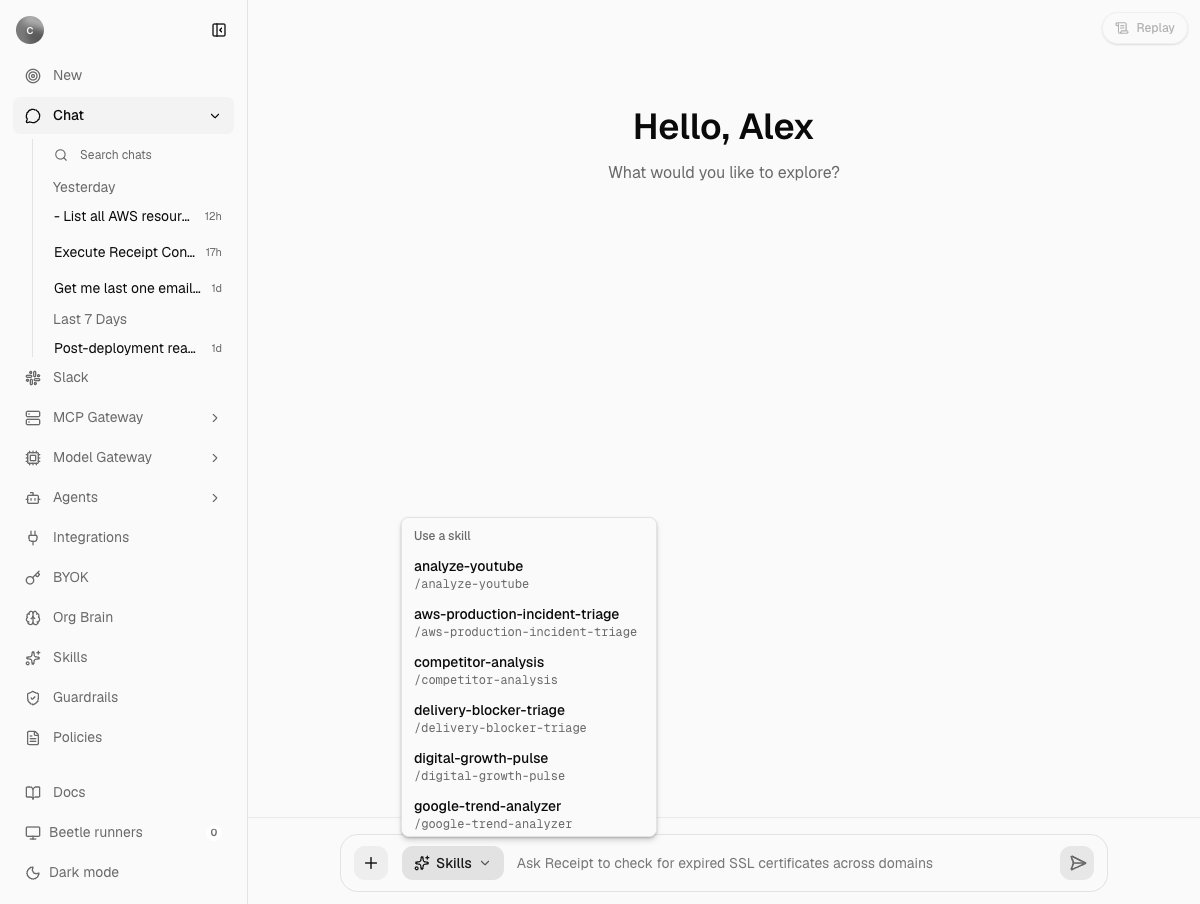 ## Use a skill
The **Skills** chip sits on the composer toolbar, to the right of `+`. Open it and the panel lists your organization's enabled skills under **Use a skill**. Each entry shows the skill's name with its `/slug` underneath; hovering an entry shows its description.
Write the request as you normally would. A skill does not replace the request; it tells the run how to go about it.
Picking a skill appends its slug to the end of your draft. `Check the prod account for failing load balancers` becomes `Check the prod account for failing load balancers /aws-production-incident-triage `. Nothing you typed is replaced, and exactly one space is kept between your text and the slug. You can equally pick the skill first and type after it.
The message is routed like any other turn. If it needs work in your connected systems, it becomes a background run, and that run receives your message with the slug in it.
What the panel shows:
* **Up to six skills**, sorted by name. When the organization has more, a line reading `{n} more on the Skills page` opens the full list. The composer menu is for picking quickly, not browsing; with a long list, typing the slug is faster.
* **Only enabled skills.** Disable a skill on the Skills page and it leaves the menu; an archived skill never appears. When none qualify, the panel says `No enabled skills yet.` and offers **Create skill** and **Manage skills** underneath.
* **Every member can pick.** The picker works for any member of the organization, not only owners and admins. Managing skills stays an admin job.
### What the slug actually does
The slug is plain text. Receipt has no slash-command parser: it does not strip, resolve or validate `/slug` before sending your message. It stays in the message exactly as typed, and typing it by hand has the same effect as picking it from the menu.
Three consequences follow from that:
* **Routing is unchanged.** The router sees the slug as ordinary text in your request and still decides between a direct answer and a background run from what you asked. Its own instructions say that asking an agent to use or select a skill is not a request to author one. See [How it works](/co-worker/how-it-works).
* **Skills apply to background runs.** A direct answer loads no skills at all. A background run gets the whole enabled catalog mounted read-only and chooses from it itself, so naming a slug is a strong hint about which entry is relevant, not a guarantee. [How it works](/co-worker/how-it-works) describes the mount.
* **Nothing records which skill was read.** Receipts show that a run started and what it did; there is no receipt for loading a skill. The catalog is written into the run's workspace and its registry hash is folded into the packet's projection hash, so the set of skills that was available can be established; which of them the agent read cannot.
Skills are snapshotted when a run's task packet is written, which is why the Skills page says "Enabled skills are available to new runs." Enabling a skill mid-run affects later runs, not the one in progress.
## Create a skill from chat
In the web app you can ask Receipt to write a new skill for you. The router classifies what you meant, so there is no button or command to press; it reads the intent of your message.
| You ask for | What happens |
| ------------------------------------------------------------------------------------------------------- | ----------------------------------------------------------------------------------------------------------------------------------- |
| A draft or a proposal, or to show, explore or hypothetically describe a skill without asking to keep it | A **draft**: the file is shown in the reply and nothing is saved. Any member can ask for a draft; no admin check runs on this path. |
| Explicitly to create, add, save or install the new skill | A **save**: the file is written as version 1, enabled, and linked from the reply. Owners and admins only. |
Draft first, then save. A draft reply is headed `## Organization skill draft`, followed by `**Not saved.** No organization skill changed.` and the complete `SKILL.md` in a fenced block. Read it, ask for changes, and when it looks right say so: if the latest reply contains a valid draft, "save it" persists exactly that file, byte for byte, without generating it again. Asking to save with no reviewed draft in the conversation generates and saves in one step.
A successful save replies:
```
## Organization skill saved
Saved and enabled `incident-triage` as version 1.
Content hash: ``
~~~markdown
---
name: incident-triage
description: ...
---
...
~~~
Manage organization skills in Settings.
```
The word Settings in that last line is a link to the Skills page. From that point the skill is enabled: it appears in the composer menu for everyone in the organization (among the six shown, or on the Skills page) and in the catalog of the next background run.
### What can stop a save
Every refusal replies under the heading `## Organization skill not saved` with the reason and the sentence `No skill changed.`, and the turn is recorded as failed.
| Situation | Reply |
| ------------------------------------------------------------ | ----------------------------------------------------------------------------------------------------------------------------------------------------------------------------------------------- |
| You are not an owner or admin | `Only organization owners or admins can save organization skills. No skill changed.` |
| A skill with that slug already exists with different content | `An organization skill with slug 'incident-triage' already exists. No skill changed.` Chat never adds a version; upload the file on the Skills page to do that. |
| The same content is already saved | Not a failure. The reply is headed `## Organization skill saved` and says ``The skill `incident-triage` was already saved with this content and is currently enabled.`` (or `disabled`). |
| The generated file breaks the contract | `Generated SKILL.md name must use lowercase-hyphen form.`, `Generated SKILL.md frontmatter must contain exactly name and description.` or `Generated SKILL.md exceeds 262144 bytes.` Ask again. |
The generator is held to the same rules as an upload, plus two of its own: the frontmatter must contain exactly `name` and `description`, and `name` must already be in lowercase-hyphen form, because it becomes the slug. A hand-written upload may use any display name and gets a derived slug; a chat-authored skill may not. The whole file is capped at 256 KB either way.
### What chat cannot do with skills
* **Change an existing skill.** Requests to update, enable, disable or archive a skill are routed as background delivery work rather than skill authoring, and no background task changes skills, so the request runs as an ordinary objective and the skill is left as it was. Use the Skills page.
* **Author more than one file.** Chat produces a single `SKILL.md`. Supporting files are not generated.
* **Author from Slack or Teams.** Drafting and saving are web-only. A Slack or Teams message that asks for a new skill is routed to a background run instead; see [Slack](/co-worker/slack) and [Teams](/co-worker/teams).
If the router's decision cannot be used, Receipt asks it once more and then stops the turn with `Receipt couldn't determine the access needed for this request. Please retry; no task was started.`, shown inside a `Beetle stopped before completing this response.` banner ([Beetle](/introduction) is the interface's name for the assistant). Nothing is saved and no run starts; send the message again. Other failure text is listed in [Errors and limits](/co-worker/errors-and-limits).
## Create skill and Manage skills shortcuts
Below the skill list, the chip offers two ways into the Skills page, and there are two more elsewhere in chat:
| Where | What it opens |
| ----------------------------------- | ------------------------------------------------------------------------------------------------------------------------------------------------------------------------------------------------------------------------------------------------------------------------------------------------------------------------ |
| Skills chip → **Create skill** | The Skills page with its file chooser already open, so you land on the picker rather than on a list. Whatever you choose uploads through the same path as the page's **Add skill** button. Some browsers refuse to open a picker on arrival; if that happens, **Add skill** is already focused, one Enter or click away. |
| Skills chip → **Manage skills** | The Skills page list: enable, disable, view details, delete. |
| `+` → **Skills** → **Create skill** | The Skills page, without opening the picker. |
| Cmd/Ctrl+K → **Skills** | The Skills page, from the command palette. See [Conversations](/co-worker/conversations). |
The Skills page describes itself as "Add organization instructions that agents can use in Factory and computer runs. Enabled skills are available to new runs." It is owner and admin only: a member who follows any of these shortcuts is redirected to the app root, with no access-denied screen, because the organization settings area as a whole is gated. Using skills from the chip is not affected.
## What is recorded
A skill saved from chat is written to the same receipt-backed stream as an uploaded one, with the conversation and run that created it recorded as its source. The Skills page shows the version, **View details** shows the content hash, and the delete dialog's note applies equally: existing receipts keep their version and content hash for audit even after the skill is deleted. How that stream works, and what the page lets an admin do with it, is on [Skills](/catalog/skills).
Next step: [manage your conversations](/co-worker/conversations).
## Use a skill
The **Skills** chip sits on the composer toolbar, to the right of `+`. Open it and the panel lists your organization's enabled skills under **Use a skill**. Each entry shows the skill's name with its `/slug` underneath; hovering an entry shows its description.
Write the request as you normally would. A skill does not replace the request; it tells the run how to go about it.
Picking a skill appends its slug to the end of your draft. `Check the prod account for failing load balancers` becomes `Check the prod account for failing load balancers /aws-production-incident-triage `. Nothing you typed is replaced, and exactly one space is kept between your text and the slug. You can equally pick the skill first and type after it.
The message is routed like any other turn. If it needs work in your connected systems, it becomes a background run, and that run receives your message with the slug in it.
What the panel shows:
* **Up to six skills**, sorted by name. When the organization has more, a line reading `{n} more on the Skills page` opens the full list. The composer menu is for picking quickly, not browsing; with a long list, typing the slug is faster.
* **Only enabled skills.** Disable a skill on the Skills page and it leaves the menu; an archived skill never appears. When none qualify, the panel says `No enabled skills yet.` and offers **Create skill** and **Manage skills** underneath.
* **Every member can pick.** The picker works for any member of the organization, not only owners and admins. Managing skills stays an admin job.
### What the slug actually does
The slug is plain text. Receipt has no slash-command parser: it does not strip, resolve or validate `/slug` before sending your message. It stays in the message exactly as typed, and typing it by hand has the same effect as picking it from the menu.
Three consequences follow from that:
* **Routing is unchanged.** The router sees the slug as ordinary text in your request and still decides between a direct answer and a background run from what you asked. Its own instructions say that asking an agent to use or select a skill is not a request to author one. See [How it works](/co-worker/how-it-works).
* **Skills apply to background runs.** A direct answer loads no skills at all. A background run gets the whole enabled catalog mounted read-only and chooses from it itself, so naming a slug is a strong hint about which entry is relevant, not a guarantee. [How it works](/co-worker/how-it-works) describes the mount.
* **Nothing records which skill was read.** Receipts show that a run started and what it did; there is no receipt for loading a skill. The catalog is written into the run's workspace and its registry hash is folded into the packet's projection hash, so the set of skills that was available can be established; which of them the agent read cannot.
Skills are snapshotted when a run's task packet is written, which is why the Skills page says "Enabled skills are available to new runs." Enabling a skill mid-run affects later runs, not the one in progress.
## Create a skill from chat
In the web app you can ask Receipt to write a new skill for you. The router classifies what you meant, so there is no button or command to press; it reads the intent of your message.
| You ask for | What happens |
| ------------------------------------------------------------------------------------------------------- | ----------------------------------------------------------------------------------------------------------------------------------- |
| A draft or a proposal, or to show, explore or hypothetically describe a skill without asking to keep it | A **draft**: the file is shown in the reply and nothing is saved. Any member can ask for a draft; no admin check runs on this path. |
| Explicitly to create, add, save or install the new skill | A **save**: the file is written as version 1, enabled, and linked from the reply. Owners and admins only. |
Draft first, then save. A draft reply is headed `## Organization skill draft`, followed by `**Not saved.** No organization skill changed.` and the complete `SKILL.md` in a fenced block. Read it, ask for changes, and when it looks right say so: if the latest reply contains a valid draft, "save it" persists exactly that file, byte for byte, without generating it again. Asking to save with no reviewed draft in the conversation generates and saves in one step.
A successful save replies:
```
## Organization skill saved
Saved and enabled `incident-triage` as version 1.
Content hash: ``
~~~markdown
---
name: incident-triage
description: ...
---
...
~~~
Manage organization skills in Settings.
```
The word Settings in that last line is a link to the Skills page. From that point the skill is enabled: it appears in the composer menu for everyone in the organization (among the six shown, or on the Skills page) and in the catalog of the next background run.
### What can stop a save
Every refusal replies under the heading `## Organization skill not saved` with the reason and the sentence `No skill changed.`, and the turn is recorded as failed.
| Situation | Reply |
| ------------------------------------------------------------ | ----------------------------------------------------------------------------------------------------------------------------------------------------------------------------------------------- |
| You are not an owner or admin | `Only organization owners or admins can save organization skills. No skill changed.` |
| A skill with that slug already exists with different content | `An organization skill with slug 'incident-triage' already exists. No skill changed.` Chat never adds a version; upload the file on the Skills page to do that. |
| The same content is already saved | Not a failure. The reply is headed `## Organization skill saved` and says ``The skill `incident-triage` was already saved with this content and is currently enabled.`` (or `disabled`). |
| The generated file breaks the contract | `Generated SKILL.md name must use lowercase-hyphen form.`, `Generated SKILL.md frontmatter must contain exactly name and description.` or `Generated SKILL.md exceeds 262144 bytes.` Ask again. |
The generator is held to the same rules as an upload, plus two of its own: the frontmatter must contain exactly `name` and `description`, and `name` must already be in lowercase-hyphen form, because it becomes the slug. A hand-written upload may use any display name and gets a derived slug; a chat-authored skill may not. The whole file is capped at 256 KB either way.
### What chat cannot do with skills
* **Change an existing skill.** Requests to update, enable, disable or archive a skill are routed as background delivery work rather than skill authoring, and no background task changes skills, so the request runs as an ordinary objective and the skill is left as it was. Use the Skills page.
* **Author more than one file.** Chat produces a single `SKILL.md`. Supporting files are not generated.
* **Author from Slack or Teams.** Drafting and saving are web-only. A Slack or Teams message that asks for a new skill is routed to a background run instead; see [Slack](/co-worker/slack) and [Teams](/co-worker/teams).
If the router's decision cannot be used, Receipt asks it once more and then stops the turn with `Receipt couldn't determine the access needed for this request. Please retry; no task was started.`, shown inside a `Beetle stopped before completing this response.` banner ([Beetle](/introduction) is the interface's name for the assistant). Nothing is saved and no run starts; send the message again. Other failure text is listed in [Errors and limits](/co-worker/errors-and-limits).
## Create skill and Manage skills shortcuts
Below the skill list, the chip offers two ways into the Skills page, and there are two more elsewhere in chat:
| Where | What it opens |
| ----------------------------------- | ------------------------------------------------------------------------------------------------------------------------------------------------------------------------------------------------------------------------------------------------------------------------------------------------------------------------ |
| Skills chip → **Create skill** | The Skills page with its file chooser already open, so you land on the picker rather than on a list. Whatever you choose uploads through the same path as the page's **Add skill** button. Some browsers refuse to open a picker on arrival; if that happens, **Add skill** is already focused, one Enter or click away. |
| Skills chip → **Manage skills** | The Skills page list: enable, disable, view details, delete. |
| `+` → **Skills** → **Create skill** | The Skills page, without opening the picker. |
| Cmd/Ctrl+K → **Skills** | The Skills page, from the command palette. See [Conversations](/co-worker/conversations). |
The Skills page describes itself as "Add organization instructions that agents can use in Factory and computer runs. Enabled skills are available to new runs." It is owner and admin only: a member who follows any of these shortcuts is redirected to the app root, with no access-denied screen, because the organization settings area as a whole is gated. Using skills from the chip is not affected.
## What is recorded
A skill saved from chat is written to the same receipt-backed stream as an uploaded one, with the conversation and run that created it recorded as its source. The Skills page shows the version, **View details** shows the content hash, and the delete dialog's note applies equally: existing receipts keep their version and content hash for audit even after the skill is deleted. How that stream works, and what the page lets an admin do with it, is on [Skills](/catalog/skills).
Next step: [manage your conversations](/co-worker/conversations).