> ## Documentation Index
> Fetch the complete documentation index at: https://docs.kentron.ai/llms.txt
> Use this file to discover all available pages before exploring further.
# Monitoring your runs
> Where to watch what Receipt is working on, what its sandboxed computers are doing, and what your imported Claude Code sessions contain.
Receipt has three pages for watching work as it happens: **Tasks** for the objectives it is working on, **Computers** for the sandboxed machines that run them, and **Sessions** for the Claude Code activity you have imported. None of the three has a sidebar entry. Tasks and Sessions are reached by typing their URL; Computers has exactly one link, the **Beetle runners** row at the bottom of the sidebar ([Beetle](/introduction) is the interface's name for the assistant).
Any signed-in member can open all three. There is no owner or admin gate, and if you are signed out the page sends you to sign-in and brings you back afterwards.
| Page | URL | How you reach it |
| --------- | ------------ | --------------------------------------------------------- |
| Tasks | `/tasks` | Type the URL |
| Computers | `/computers` | **Beetle runners** in the sidebar footer, or type the URL |
| Sessions | `/sessions` | Type the URL |
For the step-by-step record of a single run, use the **Replay** dialog instead. It is the one monitoring surface you reach through ordinary navigation — it opens from the **Replay** pill at the top right of the chat page and from the **Receipts** button on the Tasks page. See [Replay](/co-worker/replay).
## Tasks
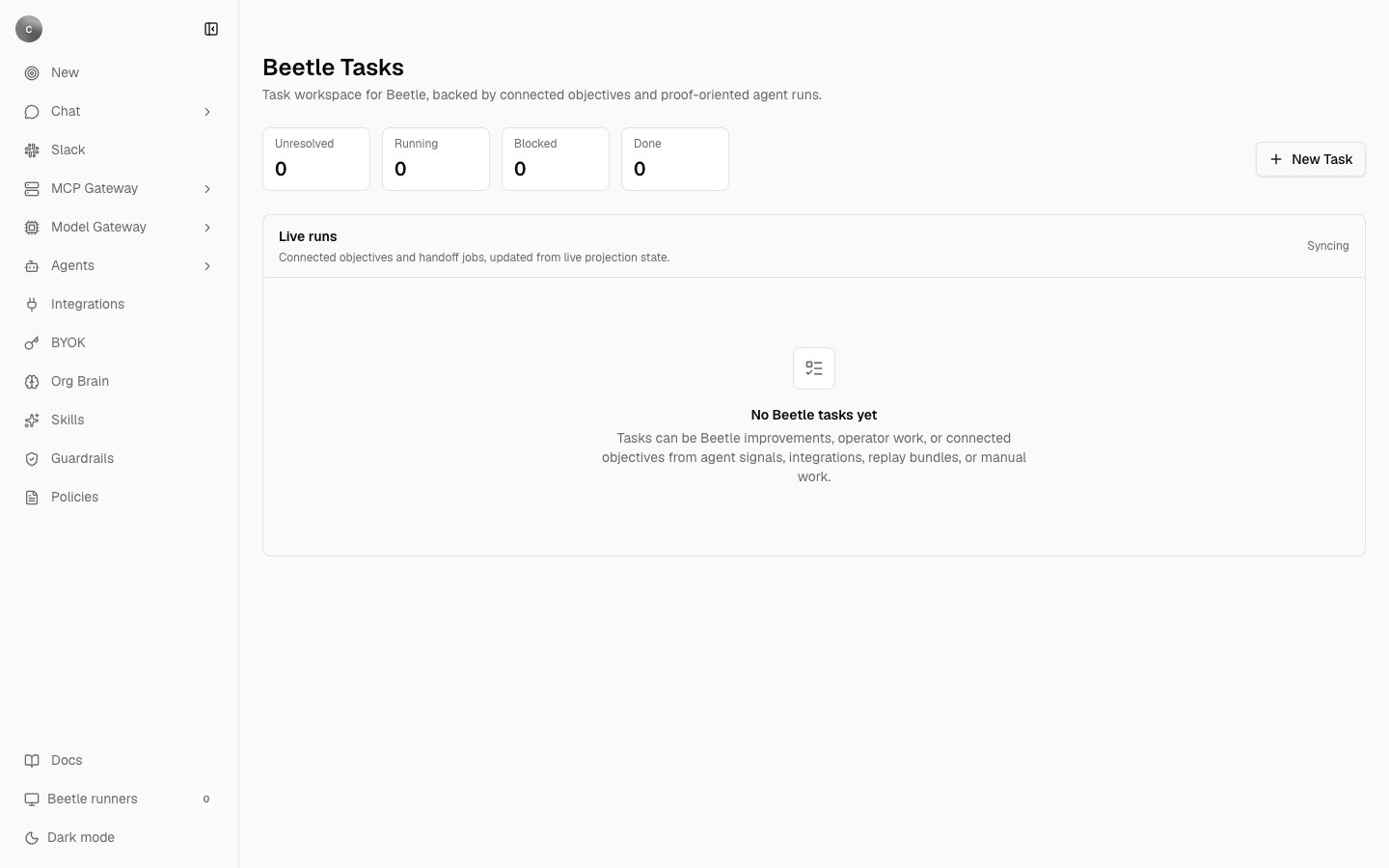 `/tasks` is titled **Beetle Tasks**, "Task workspace for Beetle, backed by connected objectives and proof-oriented agent runs." Four tiles count tasks by stage: **Unresolved** (everything not done, failed or archived), **Running** (running and reviewing together), **Blocked**, and **Done**. Below them, **Live runs** — "Connected objectives and handoff jobs, updated from live projection state." — lists one row per task, most recently changed first, with `Syncing` in the corner while the list loads. With nothing tracked yet it reads `No Beetle tasks yet`.
The list is filtered by where a task came from. Only tasks created on this page, and Receipt's own automated fix-up objectives, are listed; a run you started from chat or Slack does not appear here. Open that run from its thread and use Replay instead.
### Stages
Every task is in one of eight stages, derived from the objective's live state:
| Stage | When a task is in it |
| ------------- | ----------------------------------------------------------------------------------- |
| **New** | The objective exists and the scheduler can pick it up at any moment |
| **Queued** | It is waiting for an execution slot |
| **Running** | It has active tasks, or the objective is executing |
| **Blocked** | It stopped on something it cannot resolve; the blocker text shows in red on the row |
| **Reviewing** | Its change is in the integration step |
| **Done** | The objective completed |
| **Failed** | The objective failed or was canceled |
| **Archived** | It was deleted from this page; its receipts are kept |
### What a row shows, and what you can do
Each row carries the task's title, objective id, last change time and channel, then a one-line status written for its stage, the latest summary when there is one, and the blocker text in red when blocked. To the right sit the stage badge, a task count, and the actions:
* **Receipts** opens the same Replay dialog you see in chat, scoped to this objective.
* **Thread** jumps to the chat thread bound to the objective.
* **Cancel** appears while the stage is New, Queued, Running, Blocked or Reviewing — the stages in which the agent still holds work that can be stopped. It asks `Cancel ?` and explains "This stops the agent as soon as it is safe to do so. Any work already committed is kept in the objective's receipts." (naming the number of running tasks when there are any), and confirms with **Cancel task**. You then see `Cancellation requested. Stopping the run now.` or `Task canceled.` The row reads `Cancellation in progress. The run stops as soon as it is safe to do so.` and the button reads **Canceling** until the projection reports a terminal stage, because the runtime stops work asynchronously.
* The trash icon, whose accessible name is `Delete <title>`, asks `Delete <title>?`, "Deleting this objective is permanent and cannot be undone. Are you sure you want to continue?", and confirms with **Delete objective**. The toast reads `<title> deleted.` Deleting archives the objective; its receipt history survives.
What an objective, a task and a check are, and what to do when a task is Blocked, is on [Objectives and tasks](/co-worker/objectives-and-tasks).
### Creating a task
**New Task** opens the create panel at `/tasks?create=true` (`?create=1` works too), headed **New task** with a **Draft** badge. On the left, **Receipt evidence** has an **Attach context** select listing recent objectives and jobs (default `No additional context`), and **Add to evidence** copies the chosen identifiers into the form. In the middle, **Task intent** ("Work definition and execution controls.") holds two lane cards — **Improvement check** and **Add/improve integration** — and the fields **Title**, **Problem**, **Priority** from **P1** to **P4**, **Scope**, **Additional evidence** (labelled **Context and constraints** on the integration lane) and **Done when** ("What must be true before this is considered fixed?"). On the right, **Agent handoff** previews the brief the agent will receive, with **Discard**, **Save draft** and **Create task**.
After **Create task** the panel reports `Queued run <jobId>. The task will appear in the queue when it starts.` The task first shows in Live runs as a handoff row — `Waiting for handoff worker`, then `Creating Receipt objective` — and becomes an ordinary row once Beetle has created the objective. A handoff that cannot complete reads `Handoff failed` or `Dispatch failed`; a submission the server rejects shows the message it returned, or `Beetle task creation failed.` when it returns none. Without an active organization the panel refuses with `Sign in to an organization before creating Beetle tasks.`
## Computers
<Frame caption="The Computers page with no computers provisioned: the five capacity tiles, the four panels in their empty states — Inventory fills its space with the standby beetle rather than a list of machines — and the Beetle runners row highlighted in the sidebar footer because it is the link that opened the page.">
<img src="https://mintcdn.com/kentronai-04cb7bb0/9j8LxitK-Dp6LuhI/images/co-worker/computers.png?fit=max&auto=format&n=9j8LxitK-Dp6LuhI&q=85&s=f6e1a8aeff0635ea64fa89f5f8cb4db9" alt="The Computers page showing Ready, Leased, Running jobs, Waiting jobs and Unhealthy tiles at zero; Current work reading No running jobs, Live output reading No live computer output and Active runs reading No active runs; an Inventory panel filled by an ASCII-art beetle above the words BEETLE COMPUTER STANDBY and Waiting for computer logs; and the Beetle runners row selected in the sidebar." width="1440" height="900" data-path="images/co-worker/computers.png" />
</Frame>
`/computers` shows the live state of the compute capacity that runs background objectives. It is titled **Computers**, described as `opensandbox capacity and live execution output` — the first word is the computer provider, and `opensandbox` is the only one the runtime supports. A line underneath counts `<n> computers · <n> active jobs`.
| Tile | What it counts |
| ---------------- | ----------------------------------------------- |
| **Ready** | Idle computers, available for a job |
| **Leased** | Computers currently held by a job |
| **Running jobs** | Active leases |
| **Waiting jobs** | Jobs waiting for a computer to become available |
| **Unhealthy** | Computers that failed or went stale |
Four panels sit below the tiles. **Current work** lists running jobs (`No running jobs` when empty). **Live output** lists the stdout and stderr streams being captured (`No live computer output`). **Inventory** lists the computers themselves, and with none provisioned draws the ASCII Beetle with `Beetle computer standby` and "Waiting for computer logs." **Active runs** lists runs in progress (`No active runs`).
Rows in **Current work**, **Live output** and **Active runs** carry a small icon button whose accessible name is **Open output**; Inventory rows do not. It opens a dialog titled **Job output**, **Computer output** or **Run output** depending on the panel, with **Status**, **Task**, **Trace**, **Job** and **Lease** fields plus **Computer** (or **Sequence** for a live-output row), and a terminal view in which stdout lines are prefixed `$ `, stderr lines `[err] `, and the latest runtime message `> `. With nothing captured it reads `No computer output captured`.
There is no refresh button. Like Tasks, the page is rebuilt from receipt projections as they sync, and it shows `Syncing computers` while that is in progress.
<Info>
The **Beetle runners** row at the bottom of the sidebar is the one link to this page. Its badge is the number of online computers — those that are not failed, discarded or stale. The row has no hover tooltip; the breakdown is its accessible name, which reads `Beetle runners: <idle> ready, <leased> working, <waiting> waiting, <creating> warming, <unhealthy> unhealthy.` The row is highlighted while you are on `/computers`, and also whenever a computer is leased or a job is waiting.
</Info>
## Sessions
<Warning>
**The buttons on the Checks cards do not run anything.** Each check ends in an action button — `Run compliance scan`, `Find token waste`, `Ask the agent to analyze`, `Draft lesson` — but pressing one only switches the page to its **Evidence** or **Replay** mode, and the **Lesson candidate** card's button does nothing at all. No scan is run, no lesson is extracted and no skill is drafted. The checks themselves are arithmetic over the imported counts; the buttons describe work Receipt does not yet perform from this page.
</Warning>
<Frame caption="The Sessions page before anything has been imported: the five totals, the Refresh button, and the empty state explaining that sessions arrive from Claude activity.">
<img src="https://mintcdn.com/kentronai-04cb7bb0/9j8LxitK-Dp6LuhI/images/co-worker/sessions.png?fit=max&auto=format&n=9j8LxitK-Dp6LuhI&q=85&s=36165c9c70badb1afcbf9195a293dc6a" alt="The Sessions page with Sessions, Prompts, Replies, Issues and Evidence totals at zero, a Refresh button, and an empty state reading No imported sessions yet." width="1440" height="900" data-path="images/co-worker/sessions.png" />
</Frame>
`/sessions` is titled **Sessions**, "Find token waste, compliance risks, replay gaps, and reusable lessons from Claude activity." It reads Claude Code sessions you have imported with the CLI's `receipt import` or `receipt observe`; nothing arrives on its own, and the page reads at most the 50 most recently active imports. Until something is imported it shows `No imported sessions yet`, "Waiting for Claude activity. Imported sessions will appear as replayable agent runs with reflections, lessons, and evidence." What an import captures, and the `--local-only` flag that keeps it on your machine, are on [Observing and importing Claude Code activity](/cli/observe-claude-code).
The top strip totals **Sessions**, **Prompts**, **Replies**, **Issues** and **Evidence**, with a **Refresh** button. Unlike Tasks and Computers, this page does not update itself — it loads once and waits for **Refresh**.
Once sessions exist, the **Agent sessions** list on the left (searchable with "Search sessions, tags, models") lets you pick one, and the page offers four modes for it: **Checks**, **Replay**, **Lessons** and **Evidence**.
### The five checks
Checks mode grades the selected session against a fixed set of named checks and marks each one pass, watch or action:
| Check | What it looks at | Reads |
| ------------------------- | ------------------------------------------------------------------------------- | ----------------------------------- |
| **Token optimization** | Turn volume, flagging runs large enough to benefit from compaction or splitting | `<n> turns` or `High context churn` |
| **Replay completeness** | Whether every prompt marker has a paired response marker | `<n>% paired` or `No prompts` |
| **Compliance readiness** | Whether there is enough bounded evidence for a privacy, secret and policy scan | `Scan ready` or `Metadata only` |
| **Lesson candidate** | Whether the session has enough structure to extract a reusable lesson | `Promotable` or `Too small` |
| **Agent computer review** | Whether a sandboxed review of the evidence would be worthwhile | `Available` or `Not ready` |
The thresholds are fixed: a run counts as large at 150 turns or 500 receipts, and the last three checks stay at `Metadata only`, `Too small` and `Not ready` until a session has at least 20 turns and 40 receipts. No model is called to produce them.
Timeline rows in Replay show token usage compactly, as `<input> in · <output> out · <cache> cache`, with values of 10,000 and above abbreviated. Lessons is three read-only cards — **Lesson candidate**, **Review markers** and **Skill draft** — that summarise the same signals. Evidence is deliberately loaded on demand: "Raw receipts stay out of the main replay. Load a capped evidence window only when you need the underlying event bodies.", with a **Load latest 20** button. If the page cannot read session data at all it shows **Session data unavailable** with the reason and a **Retry** button.
## What is not on these pages
Model spend and plan usage are elsewhere. **Usage** and **Billing** live in organization settings and need an owner or admin role; like the three pages above they have no sidebar entry in this release, so you reach them by URL. See [Usage and spend](/llm-gateway/usage-and-spend) and [Billing and plans](/core/billing-and-plans). Organization-wide activity is on the Org Brain dashboard, covered in [Org Brain](/catalog/org-brain).
For operators, the runtime exposes `GET /healthz`, which always returns 200 and reports readiness in its body, and `GET /readyz`, which returns 503 when Postgres does not answer. Receipt exposes no `/metrics` endpoint of its own; everything else an operator watches is on [Health and observability](/core/health-and-observability).
Next step: [use Receipt from Slack](/co-worker/slack).
`/tasks` is titled **Beetle Tasks**, "Task workspace for Beetle, backed by connected objectives and proof-oriented agent runs." Four tiles count tasks by stage: **Unresolved** (everything not done, failed or archived), **Running** (running and reviewing together), **Blocked**, and **Done**. Below them, **Live runs** — "Connected objectives and handoff jobs, updated from live projection state." — lists one row per task, most recently changed first, with `Syncing` in the corner while the list loads. With nothing tracked yet it reads `No Beetle tasks yet`.
The list is filtered by where a task came from. Only tasks created on this page, and Receipt's own automated fix-up objectives, are listed; a run you started from chat or Slack does not appear here. Open that run from its thread and use Replay instead.
### Stages
Every task is in one of eight stages, derived from the objective's live state:
| Stage | When a task is in it |
| ------------- | ----------------------------------------------------------------------------------- |
| **New** | The objective exists and the scheduler can pick it up at any moment |
| **Queued** | It is waiting for an execution slot |
| **Running** | It has active tasks, or the objective is executing |
| **Blocked** | It stopped on something it cannot resolve; the blocker text shows in red on the row |
| **Reviewing** | Its change is in the integration step |
| **Done** | The objective completed |
| **Failed** | The objective failed or was canceled |
| **Archived** | It was deleted from this page; its receipts are kept |
### What a row shows, and what you can do
Each row carries the task's title, objective id, last change time and channel, then a one-line status written for its stage, the latest summary when there is one, and the blocker text in red when blocked. To the right sit the stage badge, a task count, and the actions:
* **Receipts** opens the same Replay dialog you see in chat, scoped to this objective.
* **Thread** jumps to the chat thread bound to the objective.
* **Cancel** appears while the stage is New, Queued, Running, Blocked or Reviewing — the stages in which the agent still holds work that can be stopped. It asks `Cancel ?` and explains "This stops the agent as soon as it is safe to do so. Any work already committed is kept in the objective's receipts." (naming the number of running tasks when there are any), and confirms with **Cancel task**. You then see `Cancellation requested. Stopping the run now.` or `Task canceled.` The row reads `Cancellation in progress. The run stops as soon as it is safe to do so.` and the button reads **Canceling** until the projection reports a terminal stage, because the runtime stops work asynchronously.
* The trash icon, whose accessible name is `Delete <title>`, asks `Delete <title>?`, "Deleting this objective is permanent and cannot be undone. Are you sure you want to continue?", and confirms with **Delete objective**. The toast reads `<title> deleted.` Deleting archives the objective; its receipt history survives.
What an objective, a task and a check are, and what to do when a task is Blocked, is on [Objectives and tasks](/co-worker/objectives-and-tasks).
### Creating a task
**New Task** opens the create panel at `/tasks?create=true` (`?create=1` works too), headed **New task** with a **Draft** badge. On the left, **Receipt evidence** has an **Attach context** select listing recent objectives and jobs (default `No additional context`), and **Add to evidence** copies the chosen identifiers into the form. In the middle, **Task intent** ("Work definition and execution controls.") holds two lane cards — **Improvement check** and **Add/improve integration** — and the fields **Title**, **Problem**, **Priority** from **P1** to **P4**, **Scope**, **Additional evidence** (labelled **Context and constraints** on the integration lane) and **Done when** ("What must be true before this is considered fixed?"). On the right, **Agent handoff** previews the brief the agent will receive, with **Discard**, **Save draft** and **Create task**.
After **Create task** the panel reports `Queued run <jobId>. The task will appear in the queue when it starts.` The task first shows in Live runs as a handoff row — `Waiting for handoff worker`, then `Creating Receipt objective` — and becomes an ordinary row once Beetle has created the objective. A handoff that cannot complete reads `Handoff failed` or `Dispatch failed`; a submission the server rejects shows the message it returned, or `Beetle task creation failed.` when it returns none. Without an active organization the panel refuses with `Sign in to an organization before creating Beetle tasks.`
## Computers
<Frame caption="The Computers page with no computers provisioned: the five capacity tiles, the four panels in their empty states — Inventory fills its space with the standby beetle rather than a list of machines — and the Beetle runners row highlighted in the sidebar footer because it is the link that opened the page.">
<img src="https://mintcdn.com/kentronai-04cb7bb0/9j8LxitK-Dp6LuhI/images/co-worker/computers.png?fit=max&auto=format&n=9j8LxitK-Dp6LuhI&q=85&s=f6e1a8aeff0635ea64fa89f5f8cb4db9" alt="The Computers page showing Ready, Leased, Running jobs, Waiting jobs and Unhealthy tiles at zero; Current work reading No running jobs, Live output reading No live computer output and Active runs reading No active runs; an Inventory panel filled by an ASCII-art beetle above the words BEETLE COMPUTER STANDBY and Waiting for computer logs; and the Beetle runners row selected in the sidebar." width="1440" height="900" data-path="images/co-worker/computers.png" />
</Frame>
`/computers` shows the live state of the compute capacity that runs background objectives. It is titled **Computers**, described as `opensandbox capacity and live execution output` — the first word is the computer provider, and `opensandbox` is the only one the runtime supports. A line underneath counts `<n> computers · <n> active jobs`.
| Tile | What it counts |
| ---------------- | ----------------------------------------------- |
| **Ready** | Idle computers, available for a job |
| **Leased** | Computers currently held by a job |
| **Running jobs** | Active leases |
| **Waiting jobs** | Jobs waiting for a computer to become available |
| **Unhealthy** | Computers that failed or went stale |
Four panels sit below the tiles. **Current work** lists running jobs (`No running jobs` when empty). **Live output** lists the stdout and stderr streams being captured (`No live computer output`). **Inventory** lists the computers themselves, and with none provisioned draws the ASCII Beetle with `Beetle computer standby` and "Waiting for computer logs." **Active runs** lists runs in progress (`No active runs`).
Rows in **Current work**, **Live output** and **Active runs** carry a small icon button whose accessible name is **Open output**; Inventory rows do not. It opens a dialog titled **Job output**, **Computer output** or **Run output** depending on the panel, with **Status**, **Task**, **Trace**, **Job** and **Lease** fields plus **Computer** (or **Sequence** for a live-output row), and a terminal view in which stdout lines are prefixed `$ `, stderr lines `[err] `, and the latest runtime message `> `. With nothing captured it reads `No computer output captured`.
There is no refresh button. Like Tasks, the page is rebuilt from receipt projections as they sync, and it shows `Syncing computers` while that is in progress.
<Info>
The **Beetle runners** row at the bottom of the sidebar is the one link to this page. Its badge is the number of online computers — those that are not failed, discarded or stale. The row has no hover tooltip; the breakdown is its accessible name, which reads `Beetle runners: <idle> ready, <leased> working, <waiting> waiting, <creating> warming, <unhealthy> unhealthy.` The row is highlighted while you are on `/computers`, and also whenever a computer is leased or a job is waiting.
</Info>
## Sessions
<Warning>
**The buttons on the Checks cards do not run anything.** Each check ends in an action button — `Run compliance scan`, `Find token waste`, `Ask the agent to analyze`, `Draft lesson` — but pressing one only switches the page to its **Evidence** or **Replay** mode, and the **Lesson candidate** card's button does nothing at all. No scan is run, no lesson is extracted and no skill is drafted. The checks themselves are arithmetic over the imported counts; the buttons describe work Receipt does not yet perform from this page.
</Warning>
<Frame caption="The Sessions page before anything has been imported: the five totals, the Refresh button, and the empty state explaining that sessions arrive from Claude activity.">
<img src="https://mintcdn.com/kentronai-04cb7bb0/9j8LxitK-Dp6LuhI/images/co-worker/sessions.png?fit=max&auto=format&n=9j8LxitK-Dp6LuhI&q=85&s=36165c9c70badb1afcbf9195a293dc6a" alt="The Sessions page with Sessions, Prompts, Replies, Issues and Evidence totals at zero, a Refresh button, and an empty state reading No imported sessions yet." width="1440" height="900" data-path="images/co-worker/sessions.png" />
</Frame>
`/sessions` is titled **Sessions**, "Find token waste, compliance risks, replay gaps, and reusable lessons from Claude activity." It reads Claude Code sessions you have imported with the CLI's `receipt import` or `receipt observe`; nothing arrives on its own, and the page reads at most the 50 most recently active imports. Until something is imported it shows `No imported sessions yet`, "Waiting for Claude activity. Imported sessions will appear as replayable agent runs with reflections, lessons, and evidence." What an import captures, and the `--local-only` flag that keeps it on your machine, are on [Observing and importing Claude Code activity](/cli/observe-claude-code).
The top strip totals **Sessions**, **Prompts**, **Replies**, **Issues** and **Evidence**, with a **Refresh** button. Unlike Tasks and Computers, this page does not update itself — it loads once and waits for **Refresh**.
Once sessions exist, the **Agent sessions** list on the left (searchable with "Search sessions, tags, models") lets you pick one, and the page offers four modes for it: **Checks**, **Replay**, **Lessons** and **Evidence**.
### The five checks
Checks mode grades the selected session against a fixed set of named checks and marks each one pass, watch or action:
| Check | What it looks at | Reads |
| ------------------------- | ------------------------------------------------------------------------------- | ----------------------------------- |
| **Token optimization** | Turn volume, flagging runs large enough to benefit from compaction or splitting | `<n> turns` or `High context churn` |
| **Replay completeness** | Whether every prompt marker has a paired response marker | `<n>% paired` or `No prompts` |
| **Compliance readiness** | Whether there is enough bounded evidence for a privacy, secret and policy scan | `Scan ready` or `Metadata only` |
| **Lesson candidate** | Whether the session has enough structure to extract a reusable lesson | `Promotable` or `Too small` |
| **Agent computer review** | Whether a sandboxed review of the evidence would be worthwhile | `Available` or `Not ready` |
The thresholds are fixed: a run counts as large at 150 turns or 500 receipts, and the last three checks stay at `Metadata only`, `Too small` and `Not ready` until a session has at least 20 turns and 40 receipts. No model is called to produce them.
Timeline rows in Replay show token usage compactly, as `<input> in · <output> out · <cache> cache`, with values of 10,000 and above abbreviated. Lessons is three read-only cards — **Lesson candidate**, **Review markers** and **Skill draft** — that summarise the same signals. Evidence is deliberately loaded on demand: "Raw receipts stay out of the main replay. Load a capped evidence window only when you need the underlying event bodies.", with a **Load latest 20** button. If the page cannot read session data at all it shows **Session data unavailable** with the reason and a **Retry** button.
## What is not on these pages
Model spend and plan usage are elsewhere. **Usage** and **Billing** live in organization settings and need an owner or admin role; like the three pages above they have no sidebar entry in this release, so you reach them by URL. See [Usage and spend](/llm-gateway/usage-and-spend) and [Billing and plans](/core/billing-and-plans). Organization-wide activity is on the Org Brain dashboard, covered in [Org Brain](/catalog/org-brain).
For operators, the runtime exposes `GET /healthz`, which always returns 200 and reports readiness in its body, and `GET /readyz`, which returns 503 when Postgres does not answer. Receipt exposes no `/metrics` endpoint of its own; everything else an operator watches is on [Health and observability](/core/health-and-observability).
Next step: [use Receipt from Slack](/co-worker/slack).