> ## Documentation Index
> Fetch the complete documentation index at: https://docs.kentron.ai/llms.txt
> Use this file to discover all available pages before exploring further.
# Background runs
> What happens when a turn becomes a durable background run, how to follow or stop it, and what a refused or blocked run looks like.
Some turns can't be answered from what's already in the conversation — they need current, private, or connected-account evidence. Receipt hands those turns off as a background run instead of answering directly, and streams its progress back into the same thread.
**A run that touches one of your apps needs that app connected first**, in **Global Integrations**, which takes an organization owner or admin — see [Connect an app](/mcp-gateway/connect-an-app). Nothing is connected in a brand-new organization, so a goal that reaches for Gmail or Jira ends in the refusal quoted under [Before the run starts](#before-the-run-starts) rather than in a run. To watch the run path with nothing connected yet, give Receipt work the computer can do on its own — for example `Write a Python script that finds the first 200 prime numbers, run it, and show me the output.` Work that has to be executed rather than recalled is what becomes a background run.
Naming a connected app in your message doesn't by itself trigger a background run. A question Receipt can answer from public knowledge stays a direct answer even if you mention a connected app by name — it's the need for private or current evidence that decides this, not the wording of your prompt.
## What a run can do
A background run works on your behalf: it plans the job, carries it out in a disposable computer, uses the apps your organization has connected, and posts the result back into the thread. Read operations on a connected app are available as soon as the app is connected, until someone narrows that list under **Manage tools**. Write operations are off until an owner or admin enables them per connection, and there is no per-action approval prompt in this release — once a write is enabled, a run can use it. [Tools and permissions](/mcp-gateway/tools-and-permissions) explains who enables what. Every run records receipts you can read afterwards in [Replay](/co-worker/replay).
## Before the run starts
Once Receipt decides a turn needs background work, it checks the connections the turn depends on. Two situations end the turn with a message instead of a run:
* **The app isn't connected.** The reply reads `{Provider} is not connected in Global Integrations yet.` and asks you to open Integrations, connect the app, then retry the request. When Receipt can see your connections it adds `Connected capabilities right now: {list}.`; when it cannot reach the connection status at all it says `I cannot confirm {Provider} is connected right now because Receipt Connect status could not be checked.` See [Connect an app](/mcp-gateway/connect-an-app).
* **The app is connected but no tools are enabled for it.** The reply reads `{Provider} is connected in Global Integrations, but you don't have access to any enabled {Provider} tools right now.` and points you to **Manage tools** for that app. An owner or admin has to enable the tool before a run can use it.
Otherwise the run is queued and the progress panel's first line reads `Beetle queued job .` — [Beetle](/introduction) is the interface's name for the assistant. From here on the thread follows the run.
## Watching it run
While a background run is attached to your turn, the thread shows a progress panel with an elapsed timer and an expandable **Progress details** section. The raw runtime steps are translated into plain language before you see them — for example, `factory.dispatch: started` is shown as **Started background run**, and `Recorded reasoning for iteration N` becomes **Captured reasoning**. Only the last six distinct steps are kept on screen at once, so the panel doesn't scroll forever.
The headline above the list is the latest step. Before the first step arrives it reads **Starting Beetle...**. Screen readers hear each row announced as **Queued**, **In progress**, **Completed** or **Failed**, and the headline prefixed with **Working:**, **Completed:** or **Needs attention:**.
A **Computer preview** button opens **Computer Logs**, with a search box, an **Errors** filter, and a live terminal view where lines are prefixed `$ ` for stdout, `[err] ` for stderr, and `> ` for activity — buffered to the last 80 lines. Before any computer has picked up the work you'll see **Beetle computer offline**; once it has, but before it's produced output, you'll see **Computer is active; waiting for shell output.**
## Closing the tab
You can close the tab and come back later. The run's state syncs from a persisted projection rather than living only in your open browser tab, so returning to the thread shows you the finished answer whenever it's ready.
Every run also has a durable address of the form `/chat?objective=`, which opens the thread that started it. The Slack app's **View Receipt** link uses the same address, so a run started in [Slack](/co-worker/slack) can be followed in the web app.
## Stopping a run
**Stop generation** replaces the send button while a response is in flight in that tab. Clicking it closes the local stream, then cancels the background objective and every job still active under it, and appends `This task is stopped.` to the thread. If the cancel call itself fails the stream still closes, but that notice is not appended: the composer shows the error instead, which reads `Stopped the response, but could not cancel the agent run.` when the failure carries no message of its own.
The Tasks page has a **Cancel task** action of its own, but it lists only objectives started on that page, so a run started from chat is not there. To stop one you are no longer streaming, delete its thread from the sidebar: the confirmation says it also stops and removes any running tasks the thread started. See [Conversations](/co-worker/conversations) and [Objectives and tasks](/co-worker/objectives-and-tasks).
## When a run fails
A run that fails outright renders `Beetle stopped before completing this response.`, along with a status and a reason for what went wrong. The full message has a fixed shape:
```
Beetle stopped before completing this response.
Status: failed.
Reason:
This was reported by the Beetle runtime; it was not a normal completed answer.
```
Stopping a run yourself writes the same block with `Status: canceled.` and `Reason: chat stream stopped before Beetle finished`.
One failure has its own wording. When no computer could be obtained for the run, the message reads `The Factory computer runtime is not available, so this objective did not run to completion.`, followed by `Runtime reason: ` and `Check that the OpenSandbox controller and local Receipt stack are running, then retry the request.` On the hosted app that is for the operators to fix; on a deployment you run yourself, see [Local development troubleshooting](/core/local-development-troubleshooting).
### When routing fails
Before any run is queued, Receipt has to decide what access the turn needs. It asks a classification model once and, when that answer is unusable or its choice of connections still has to be checked, asks once more to review the candidate decision. If that also fails, the turn is refused rather than guessed: the failure block above appears with the reason `Receipt couldn't determine the access needed for this request. Please retry; no task was started.`
Nothing was queued and nothing ran, so sending the message again is the right response. [Slack](/co-worker/slack) replies with the same sentence. [Teams](/co-worker/teams) is the exception: it starts a background run anyway.
## When a run needs attention
A run can stop without finishing or failing. Receipt calls this state **blocked**: the plan cannot go any further until something changes, and the run waits rather than retrying. The cause in the screenshot is a common one — two sandbox-backed tasks in a row ended at the same failure, so the run stopped itself instead of planning a third. That is a fixed rule, applied without another model call, so a run cannot burn through computers on a problem only you can fix.
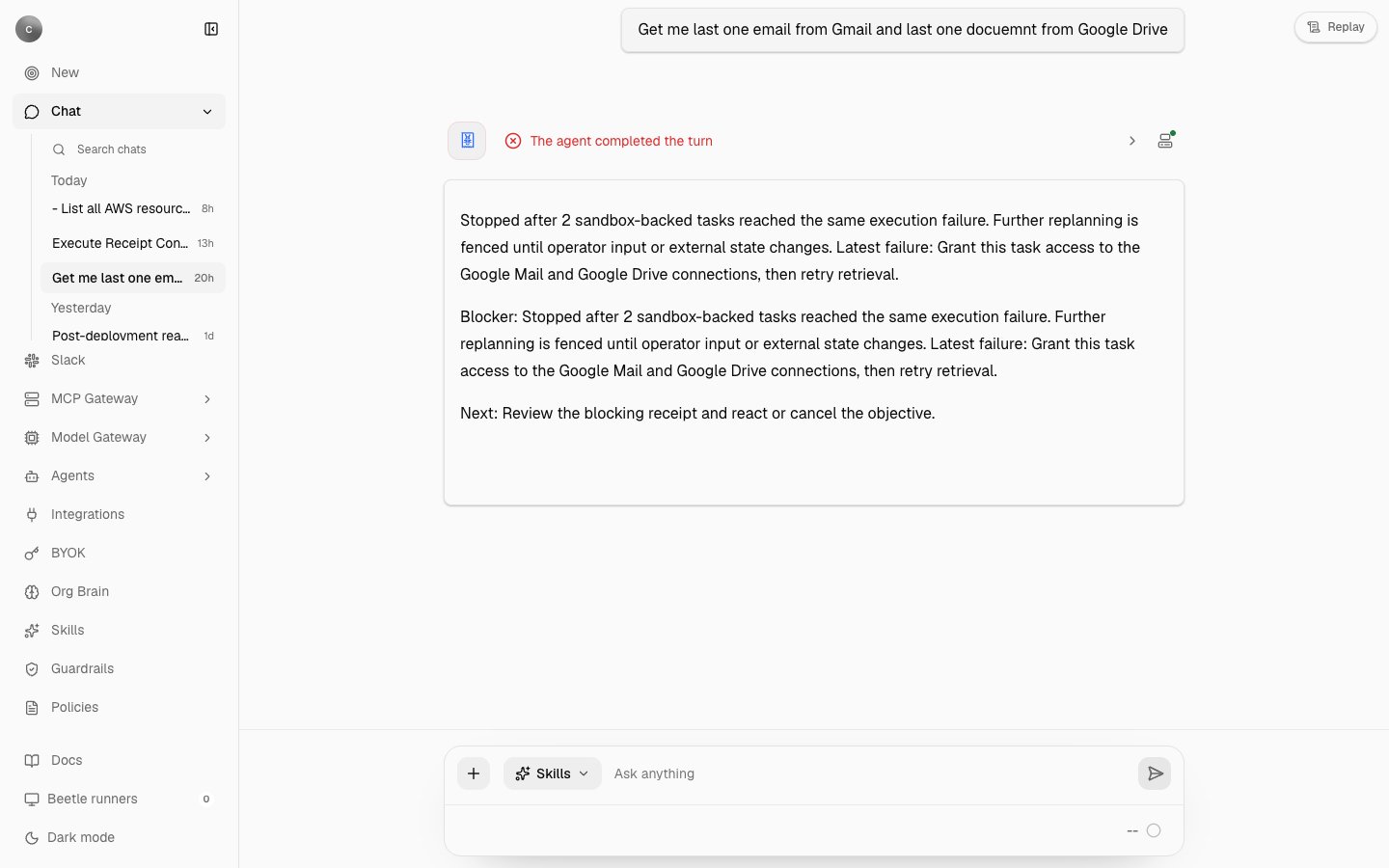 What you see in the thread:
* The progress headline turns red with a cross icon and keeps the last recorded step — in the screenshot, **The agent completed the turn**. Screen readers hear it prefixed **Needs attention:**.
* The message opens with the run's own summary. Here it is `Stopped after 2 sandbox-backed tasks reached the same execution failure. Further replanning is fenced until operator input or external state changes. Latest failure: Grant this task access to the Google Mail and Google Drive connections, then retry retrieval.`
* A `Blocker:` paragraph repeats the reason, and a `Next:` line tells you what to do. For a run that would change something it reads `Next: Review the blocking receipt and react or cancel the objective.`; for a read-only investigation it reads `Next: Review the blocking receipt, adjust the investigation, or cancel the objective.` A run that failed outright gets `Next: Inspect the failure details, react with guidance, or cancel the objective.` instead.
To get it moving again:
Open **Replay** at the top of the thread and look at the last recorded step. [Replay](/co-worker/replay) explains the views.
In the example the run needed the Google Mail and Google Drive connections, so an owner or admin enables the missing tool under **Manage tools** for that connection ([Tools and permissions](/mcp-gateway/tools-and-permissions)). Other blockers need a different fix — an expired credential, a missing repository permission — but the pattern is the same: the run is waiting on something it cannot change itself.
A follow-up in a thread that is bound to a run is treated as a reaction on that run — new guidance, new evidence — unless Receipt decides the message is really a new request, in which case it starts a fresh run. Your reply is what "operator input" means in the blocker text. If you would rather drop it, delete the thread from the sidebar; its confirmation says it also stops and removes any running tasks the thread started.
Blocked is not failed: nothing is lost, the receipts are intact, and the run can be unblocked or redirected once it has what it was missing.
## Limits that shape a run
* Runs share computer capacity. The shipped defaults allow one active computer per organization and one across the whole deployment, so unless your deployment raises those limits a second run queues until the first releases its computer. The [Computers page](/co-worker/monitoring) shows what is in use.
* A run is scoped to the connections Receipt selected for that message. It does not take every app you have connected as a fallback.
* Write operations must be enabled per connection before a run can use them. A run that needs one it does not have cannot ask you mid-run: the call is refused with `integration action '' requires connect:write`, or with `integration action not found or disabled` when the tool is not enabled at all. The run then ends on that refusal — the blocked message above is what that looked like in the screenshot.
How a turn becomes a run, and what happens inside the computer, is on [How it works](/co-worker/how-it-works).
Next step: [read what Receipt recorded about the run](/co-worker/replay).
What you see in the thread:
* The progress headline turns red with a cross icon and keeps the last recorded step — in the screenshot, **The agent completed the turn**. Screen readers hear it prefixed **Needs attention:**.
* The message opens with the run's own summary. Here it is `Stopped after 2 sandbox-backed tasks reached the same execution failure. Further replanning is fenced until operator input or external state changes. Latest failure: Grant this task access to the Google Mail and Google Drive connections, then retry retrieval.`
* A `Blocker:` paragraph repeats the reason, and a `Next:` line tells you what to do. For a run that would change something it reads `Next: Review the blocking receipt and react or cancel the objective.`; for a read-only investigation it reads `Next: Review the blocking receipt, adjust the investigation, or cancel the objective.` A run that failed outright gets `Next: Inspect the failure details, react with guidance, or cancel the objective.` instead.
To get it moving again:
Open **Replay** at the top of the thread and look at the last recorded step. [Replay](/co-worker/replay) explains the views.
In the example the run needed the Google Mail and Google Drive connections, so an owner or admin enables the missing tool under **Manage tools** for that connection ([Tools and permissions](/mcp-gateway/tools-and-permissions)). Other blockers need a different fix — an expired credential, a missing repository permission — but the pattern is the same: the run is waiting on something it cannot change itself.
A follow-up in a thread that is bound to a run is treated as a reaction on that run — new guidance, new evidence — unless Receipt decides the message is really a new request, in which case it starts a fresh run. Your reply is what "operator input" means in the blocker text. If you would rather drop it, delete the thread from the sidebar; its confirmation says it also stops and removes any running tasks the thread started.
Blocked is not failed: nothing is lost, the receipts are intact, and the run can be unblocked or redirected once it has what it was missing.
## Limits that shape a run
* Runs share computer capacity. The shipped defaults allow one active computer per organization and one across the whole deployment, so unless your deployment raises those limits a second run queues until the first releases its computer. The [Computers page](/co-worker/monitoring) shows what is in use.
* A run is scoped to the connections Receipt selected for that message. It does not take every app you have connected as a fallback.
* Write operations must be enabled per connection before a run can use them. A run that needs one it does not have cannot ask you mid-run: the call is refused with `integration action '' requires connect:write`, or with `integration action not found or disabled` when the tool is not enabled at all. The run then ends on that refusal — the blocked message above is what that looked like in the screenshot.
How a turn becomes a run, and what happens inside the computer, is on [How it works](/co-worker/how-it-works).
Next step: [read what Receipt recorded about the run](/co-worker/replay).